

SSHVisor is a VS Code extension for working with files on SSH / SFTP servers. It shows server folders in the Explorer next to your local folders, so you can open, edit, copy and drag files in and out just as you do with local folders. This guide is for first-time users of SSHVisor and walks you through everything in order, from setup to everyday tasks and what to do when something goes wrong.
- This guide covers SSHVisor 0.7.1 (2026-11-28).
- If you are switching from SSH FS (Kelvin.vscode-sshfs), PuTTY, WinSCP or FileZilla, also see 13. Switching from other tools.
#Contents
- 1. Introduction
- 2. Installing and updating
- 3. Screen layout
- 4. Getting started
- 5. Hosts
- 6. Test connection
- 7. Working with server files in the Explorer
- 8. The host tree
- 9. Upload, download and copy
- 9.1 When to use them instead of the Explorer
- 9.2 Upload
- 9.3 Download
- 9.4 Copy to another host
- 9.5 Files with the same name
- 9.6 The Transfers view
- 9.7 Resume a transfer
- 9.8 Notifications when a transfer finishes
- 9.9 Speed and the number of connections
- 9.10 Compress on the server
- 9.11 Extract on the server
- 9.12 Compress and download, upload and extract
- 9.13 Use with ArcVisor
- 10. Terminal
- 11. Connections and security
- 12. Connect AI Agents
- 13. Switching from other tools
- 14. Using SSHVisor in WSL
- 15. Settings, keyboard shortcuts and commands
- 16. Troubleshooting
- 17. FAQ
- 18. Glossary
#1. Introduction
#1.1 What SSHVisor does
| Task | Main operations | Details |
|---|---|---|
| Manage hosts | Add and edit (four ways to start), see the connection values that are really used, environment tags, folders, sharing with your team | 5. Hosts |
| Check the connection | A nine-stage test connection, checking the host key of a new host | 6. Test connection |
| Work with server files | In the Explorer, next to your local folders: open, edit, create, rename, delete, copy and paste, drag and drop | 7. Working with server files in the Explorer |
| Search files on the server | The Search view (contents and file names; match case, whole word and regular expressions; files to include and exclude) and Go to File. SSHVisor runs rg or grep on the server to search | 7.7 Search files on the server |
| See changes made on the server | Files that other people or programs change on the server are updated in your open editors and in the Explorer | 7.5 Show changes made on the server |
| Browse in the host tree | Hosts, bookmarks, and the folders and files on the server | 8. The host tree |
| Send large transfers fast | "Upload with SSHVisor...", "Download with SSHVisor..." and "Copy to Another Host with SSHVisor..." (bundles files with tar, and splits large files over several channels and connections) | 9. Upload, download and copy |
| Watch transfers and finish them later | The Transfers view (queue, progress, speed), cancel, resume, retry the files that failed | 9.6 The Transfers view |
| Compress and extract on the server | "Compress on Server...", "Extract on Server...", "Compress and Download...", "Upload and Extract...". Open downloaded archives with ArcVisor | 9.10 Compress on the server |
| Run commands on the server | Open an SSH terminal in a folder | 10. Terminal |
| Stay safe | Passwords kept in SecretStorage, host keys checked against known_hosts, confirmations on production hosts, read-only hosts | 11. Connections and security |
| Connect through a proxy | Connect through a SOCKS5, SOCKS4 or HTTP proxy, for example from a company network | 11.5 SOCKS / HTTP proxies |
| Work with files as another user | Open, save and transfer files as root or www-data with sudo | 11.6 Work as another user with sudo |
| Keep working after a disconnect | Hosts in use reconnect in the background, stopped transfers continue from where they stopped, and terminals reconnect when you press Enter | 11.7 When the connection drops |
| Connect AI agents | The VS Code chat, Claude Code, Codex and other agents read and search files on the hosts you allow, and change them after you confirm | 12. Connect AI Agents |
| Switch from other tools | Choose and import the sites saved in SSH FS, PuTTY, WinSCP or FileZilla | 13. Switching from other tools |
#1.2 Requirements
| Item | Details |
|---|---|
| VS Code | 1.134 or later (Windows, macOS, Linux. Also works in WSL windows: 14. Using SSHVisor in WSL) |
| Server | A server that supports SSH and SFTP (OpenSSH on Linux is assumed). Nothing is installed on the server |
| Shell | If you can use a shell on the server, you also get the fast methods (tar, cp -a, rm -rf), the terminal and search. With an account limited to SFTP, you can still read and write files. If the server has rg (ripgrep), search is faster, and if it has inotifywait (inotify-tools), SSHVisor also notices changes in folders (SSHVisor works without either). To compress and extract on the server, tar and gzip are needed (zip and unzip for .zip, zstd for .tar.zst. See 9.10 Compress on the server) |
| Authentication | SSH agent, private keys, keyboard-interactive (two-factor codes), passwords |
| Other | If the local ssh command (OpenSSH) is available, SSHVisor resolves the ssh_config values with ssh -G. Without it, SSHVisor reads ssh_config approximately |
#1.3 SSHVisor and Remote - SSH
In SSHVisor folders (sshvisor://), VS Code's full-text search (Ctrl+Shift+F), Quick Open (Ctrl+P), Git and language features that span multiple files do not work because of VS Code limitations (the same is true for SSH FS). To search and to open files by name, use the SSHVisor Search view and "Go to File..." (7.7 Search files on the server, 7.8 Go to a file by name).
- If you write code on a server that supports Remote - SSH (glibc 2.28 or later, x86_64 / arm64, allows a shell and TCP forwarding), use Remote - SSH.
- SSHVisor is a good fit for viewing and editing config files and logs, transferring files, accounts limited to SFTP, old servers, and work that spans many servers.
#1.4 How to read this guide
- Names of screen items and buttons are written in quotation marks (for example, "Save and Connect"), and keys and commands are written like
Ctrl+Enter. - Keys are given for Windows and Linux. On macOS, read
CtrlasCmdandAltasOption. - The screenshots show VS Code with its display language set to English (2.4 Display language). The servers in the screenshots are test servers, so their host name is
127.0.0.1. - If you are new to SSHVisor, read 3. Screen layout and 4. Getting started to learn the basics. If you run into a problem, see 16. Troubleshooting.
#2. Installing and updating
#2.1 Install
SSHVisor is distributed as a VSIX file (sshvisor-<version>.vsix).
- Open the Extensions view (
Ctrl+Shift+X) in VS Code. - From the "..." menu at the top of the view, choose "Install from VSIX..." and select the VSIX file you received.
You can also install it by running code --install-extension sshvisor-<version>.vsix on the command line. After installation, the SSHVisor icon appears in the Activity Bar (the row of icons on the left edge of VS Code).
#2.2 Update to a new version
Install the VSIX of the new version the same way. Your saved hosts, remembered passwords and settings are kept. If VS Code asks you to reload, reload the window. The changes in each version are listed in CHANGELOG.md.
#2.3 Uninstall
In the Extensions view, choose "Uninstall" from the gear menu of SSHVisor. Hosts saved in a workspace (.vscode/sshvisor.json) remain as files. The known_hosts files that host keys were added to (such as ~/.ssh/known_hosts) also stay as they are.
#2.4 Display language
SSHVisor's screens follow the VS Code display language (Japanese or English). To switch, run "Configure Display Language" from the Command Palette (Ctrl+Shift+P), choose a language and restart VS Code.
#2.5 Workspace Trust
In an untrusted workspace (Restricted Mode), SSHVisor does not load the hosts shared with the team (.vscode/sshvisor.json). Your own hosts can still be used. This keeps you from connecting to unknown servers just by opening a repository.
#3. Screen layout
#3.1 Overview
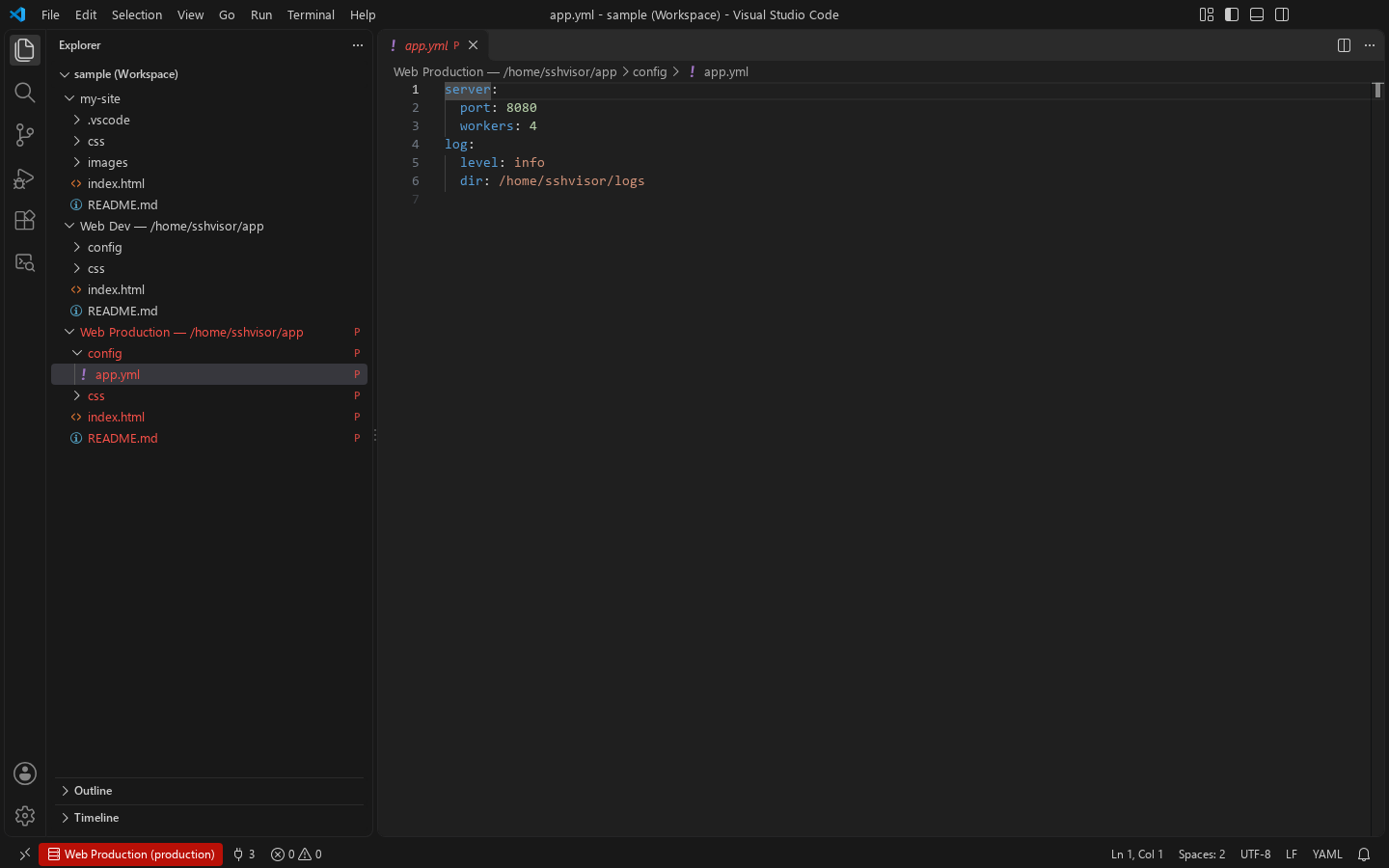
| Location | Name | Description |
|---|---|---|
| Left edge | SSHVisor icon | In the Activity Bar. Select it to show the "Hosts" view in the Side Bar (3.2 The Hosts view) |
| Left | Explorer | Shows your local folders and the server folders you added with "Add to Workspace" ("host name — path"). Folders from production hosts have red names and a "P" (7. Working with server files in the Explorer) |
| Right | Editor | Open and edit server files just like local files. Saving writes the file to the server |
| Bottom | Status Bar | Shows the host of the open server file, the number of connected hosts and the transfer progress (3.3 Status Bar) |
#3.2 The Hosts view
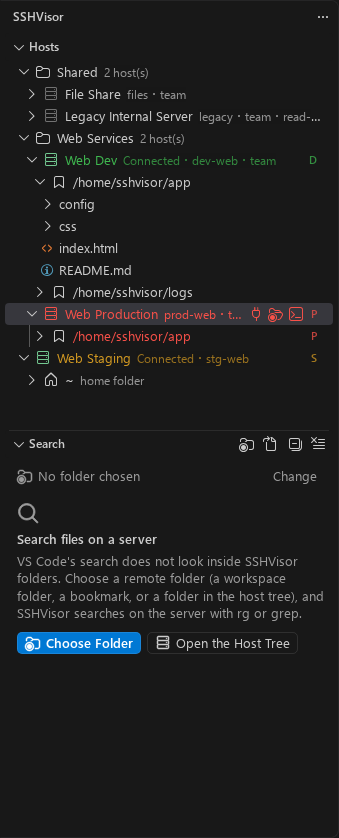
- Lists your registered hosts, grouped in folders. At first, folders and hosts are shown collapsed.
- Expand a host to see its bookmarks (frequently used folders registered for the host; the home folder if there are none). Expanding a bookmark or folder connects to the server and shows the folders and files on it. Select a file to open it in the editor.
- The color of the host icon shows the connection state (green: connected, gray: not connected, red: failed; a spinning icon while connecting). The text to the right of the name shows the state,
user@host, "team" (a host shared with the team), "read-only", and "sudo: root" (a host whose files are handled as another user with sudo; see 11.6). - The single letter at the right edge is the environment tag ("P" for production, "S" for staging, "D" for development). Production hosts have red names, staging hosts yellow and development hosts green.
- At the top of the view are the "Add Host" (+), "Disconnect All Hosts", "Refresh" and "Collapse All" buttons. The "..." menu has "Add Host from ssh_config...", "Import from Other Tools...", "Get Started with SSHVisor", "Show Log" and "Connect AI Agents...".
- When there are no hosts yet, the view shows the "Add Host", "Add from ssh_config" and "Import from Other Tools" buttons and a "Get started in three steps" link.
- Below the Hosts view is the "Search" view for finding files on servers (7.7 Search files on the server). Drag the border between them to change their height.
- While a host is reconnecting in the background after its connection dropped, "Reconnecting… (attempt N)" or "Connection lost ・ retrying in N s" appears to the right of the host name (11.7 When the connection drops).
#3.3 Status Bar

| Item | When it appears | When you select it |
|---|---|---|
| Host name (environment tag) | While a server file is open. Red background for production, yellow for staging. A lock icon is added for read-only hosts, and a shield icon and the user (for example, root) for hosts that use sudo | Selects that host in the Hosts view |
| Number of connections (plug icon) | While any host is connected. If hosts are reconnecting in the background, a spinning icon and their number also appear | Opens the Hosts view. Hover over it to see the names of the connected hosts and the reconnecting hosts |
| Transfer progress (↑ ↓, done, waiting, speed) | While many files or large files are being transferred in the Explorer (7.6 Transfer progress) | Opens the Transfers view (the Output (log) if something failed) |
| "N transfer(s) ・ M%" (spinning icon) | While uploads, downloads or copies are running (9.6 The Transfers view) | Opens the Transfers view |
| Robot icon and "SSHVisor" (right side) | While AI agents are connected (12.2 Connect an agent) | Opens the Connect AI Agents page |
#3.4 Other screens
| Screen | How to open | Details |
|---|---|---|
| Add / edit host form | "Add Host", "Edit Host..." | 5. Hosts |
| Test connection report | "Test Connection" in the host form, "Test Connection" in the tree | 6. Test connection |
| Terminal | "Open SSH Terminal" | 10. Terminal |
| Transfers view ("SSHVisor Transfers" in the bottom Panel) | When a transfer starts, "SSHVisor: Show Transfers", the transfer item in the Status Bar | 9.6 The Transfers view |
| Search view ("Search" in the Side Bar) | The SSHVisor icon, "Search in Folder..." | 7.7 Search files on the server |
| Output (SSHVisor) | "Show Log" | 16. Troubleshooting |
#4. Getting started
#4.1 Add a host
- Select the SSHVisor icon in the Activity Bar, then select "Add Host" (+) in the Hosts view. The "Add Host" form opens in the editor area.
- Choose the "New host" card and select "Next" (if the host is in your ssh_config, "From an ssh_config host" is easier).
- Enter a host name or IP address in "Host" and a user name in "User". "Connection values in use" on the right shows the values that will be used to connect.
- Choose an "Authentication" card. If you are not sure, leave it at "Automatic".
- Select "Test Connection" on the right. For a host you have never connected to, the fingerprint of its host key appears. If it matches the fingerprint you got from the server administrator, select "Trust and Continue" (6.2 The host key of a new host). If you are asked for a password, enter it.
- When all nine stages pass, select "Save and Connect". The host is added to the Hosts view and connects.
#4.2 Show server folders in the Explorer
- In a window with a local folder open, hover over a host in the Hosts view and select "Add Remote Folder to Workspace" (the folder icon) that appears on the right. The same works on bookmark and folder rows.
- If you started from a host row, choose which folder to open (a bookmark, the home folder, or enter a path).
- The Explorer shows your local folder and the server folder ("host name — path") side by side. The window becomes "Untitled (Workspace)".
#4.3 Open, edit and transfer files
- Select a server file in the Explorer to open it in the editor. When you edit it and save (
Ctrl+S), it is written to the server. - Drag files from a local folder to a server folder to send them (a plain drag moves them; hold
Ctrlto copy). The other direction works the same way. - To use the same layout next time, save it with File > Save Workspace As.... When you open the saved workspace, the server folders appear again and connect.
#4.4 The getting started walkthrough
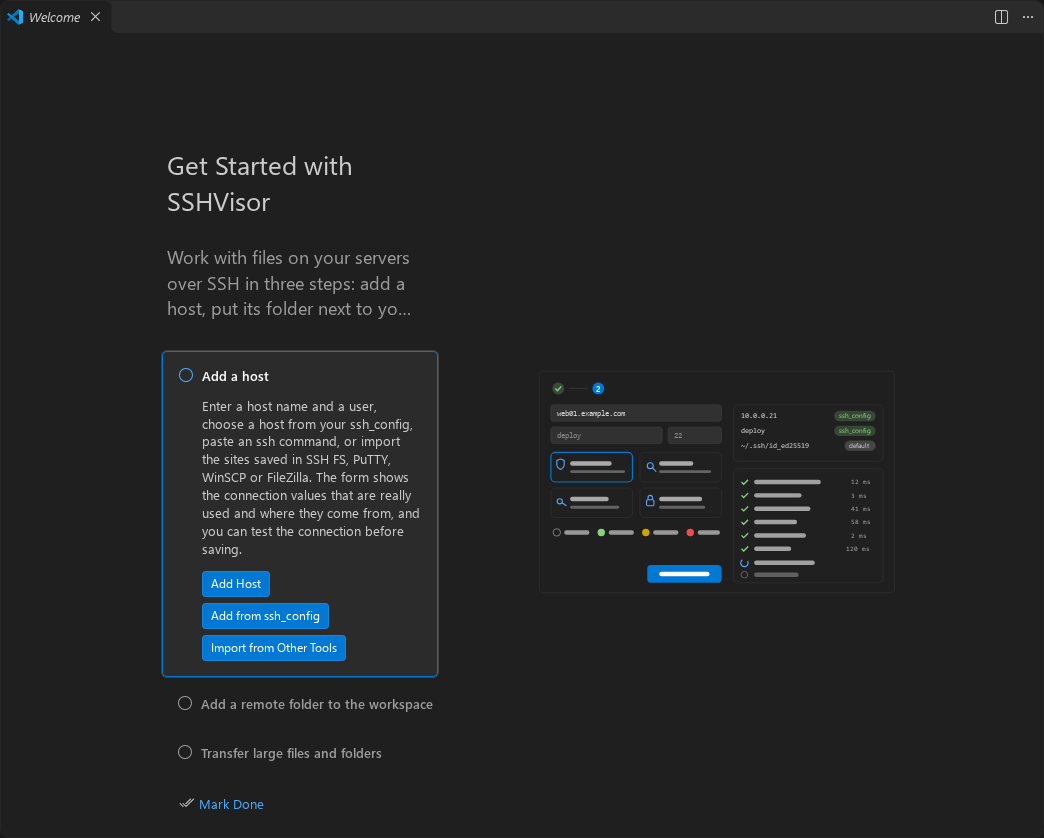
Choose "..." > "Get Started with SSHVisor" in the Hosts view, or run "SSHVisor: Get Started with SSHVisor" from the Command Palette, to show three steps (add a host, add a remote folder to the workspace, transfer large files and folders) on the VS Code Welcome page. The buttons in each step start that task.
#5. Hosts
#5.1 How to start adding a host
The "Add Host" form has two steps. In the first step, you choose a card for how to start; in the second, you enter the destination and name. The top of the form shows which step you are on.
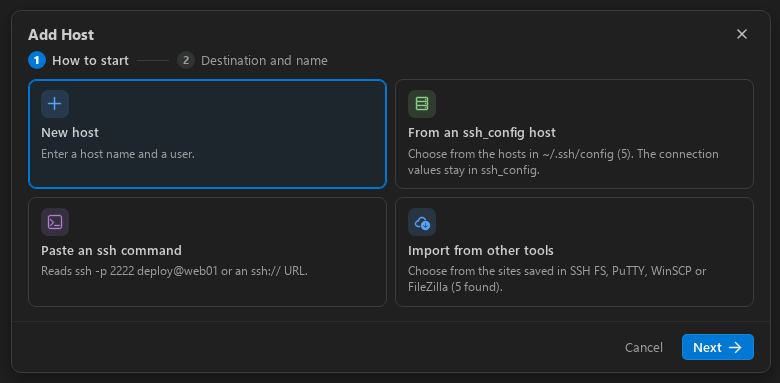
| Card | How to use |
|---|---|
| New host | Create a host by entering a host name and a user |
| From an ssh_config host | Choose from the list of hosts in ~/.ssh/config (Host entries without wildcards). The connection values are used as they are in ssh_config |
| Paste an ssh command | Paste ssh -p 2222 -J bastion deploy@web01, ssh://deploy@web01:2222/var/www, deploy@web01:/var/www or similar, and the values read from it are shown. "Next with these values" takes you to step 2 |
| Import from other tools | Choose and import sites saved in SSH FS, PuTTY, WinSCP or FileZilla. The card shows how many were found. Even if none are found, you can choose an exported file (13. Switching from other tools) |
You can also double-click a card to go to the next step.
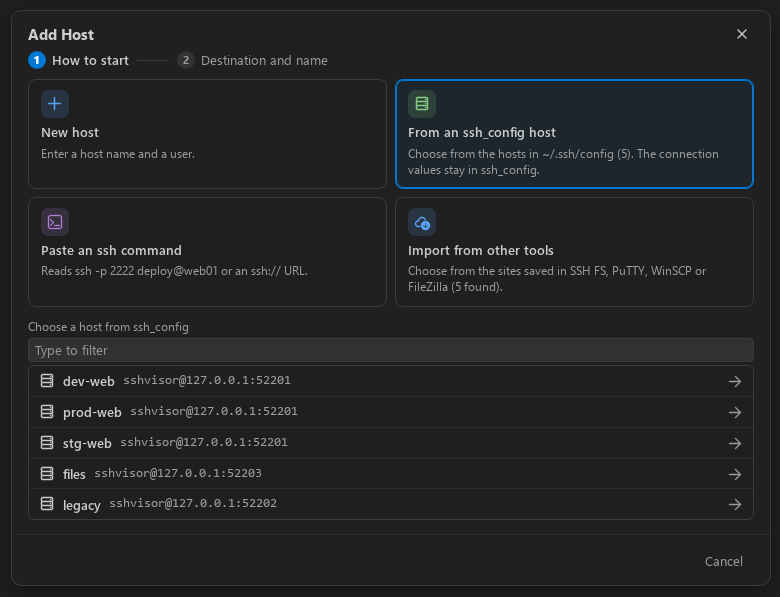
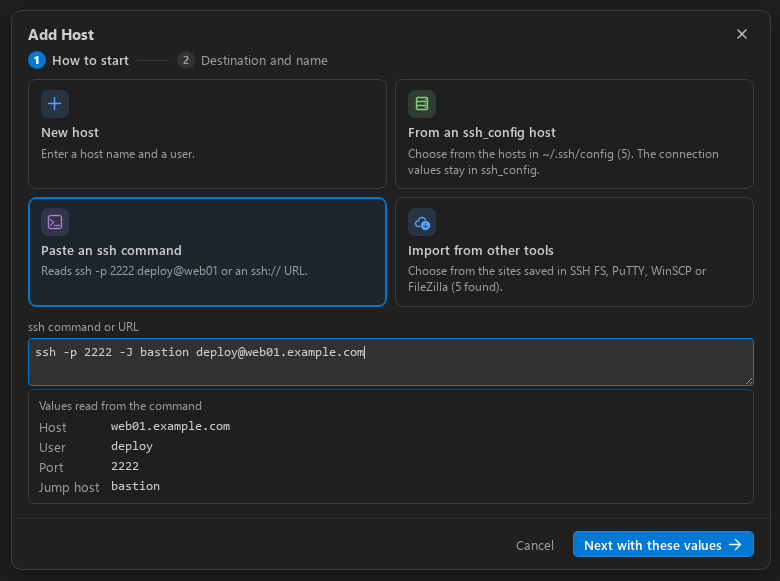
#5.2 Destination and name
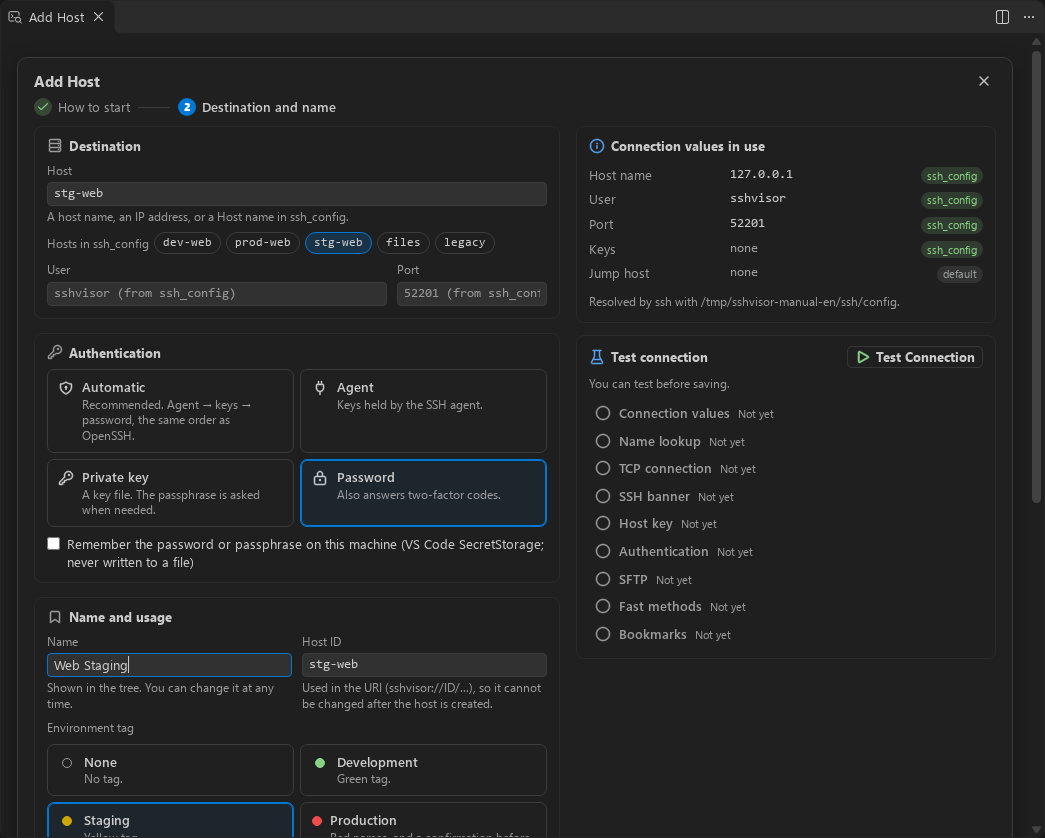
| Field | Description |
|---|---|
| Host | A host name, an IP address, or a Host name in ssh_config. The Host names in ssh_config are shown as buttons, so you can also pick one |
| User, Port | If left empty, the value from ssh_config or the default is used. That value is shown in faint text (for example, "sshvisor (from ssh_config)") |
| Authentication | 5.3 Authentication methods |
| Name | The name shown in the tree. You can change it at any time |
| Host ID | A name that identifies the host (lowercase letters, digits and -). A suggestion based on the host is filled in. It is used in the URI of server folders (sshvisor://<host ID>/path), so it cannot be changed after the host is created |
| Environment tag, Save to, Folder | 5.4 Environment tags and read-only, 5.5 Save location and team sharing |
| Advanced settings | Collapsed by default. 5.6 Advanced settings |
"Connection values in use" on the right shows the host name, user, port, keys and jump host used to connect, each with a badge showing where it comes from ("ssh_config", "this form", "default", "pasted"). The bottom line shows the ssh and ssh_config used to resolve the values. The display updates as soon as you change a field.
The buttons at the bottom are "Save and Connect", "Save", "Back" and "Cancel". Ctrl+Enter runs "Save and Connect", and Esc closes the form. After you save, the host is selected in the Hosts view.
#5.3 Authentication methods
| Card | Description |
|---|---|
| Automatic (recommended) | Tries the SSH agent's keys → key files → keyboard-interactive → password, in that order (the same order as OpenSSH) |
| Agent | Uses only the keys held by the SSH agent |
| Private key | You specify a key file (you can pick it with "Browse…"). The passphrase is asked for only when the server accepts the key |
| Password | Signs in with a password. Also answers servers that ask for a two-factor verification code |
If you select "Remember the password or passphrase on this machine", the passwords and passphrases you enter are kept in VS Code's SecretStorage (the credential store of the OS). They are never written to files or settings (11.2 Remember passwords and passphrases).
#5.4 Environment tags and read-only
| Environment tag | Display | Effect |
|---|---|---|
| None | No tag | |
| Development | Green, "D" | |
| Staging | Yellow, "S" | The Status Bar shows a yellow background for open files |
| Production | Red, "P" | Names turn red in the tree, the Explorer, tabs and breadcrumbs. SSHVisor asks before deleting files and folders, and before copies and moves that overwrite files (7.4 Production hosts) |
If you select "Read-only" in "Advanced settings", every write, delete and rename on that host is refused. Files are also read-only in the editor.
Under the environment tag, "AI agents" lets you choose what AI agents may do on this host ("Follow the tag" / "Read and change" / "Read" / "List only" / "Hidden"). The "Follow the tag" card shows what the current environment tag allows (12.3 What each host allows).
#5.5 Save location and team sharing
| Save to | Where it is saved | Best for |
|---|---|---|
| Only me | Inside VS Code (on this machine) | Servers that only you use |
| Shared with the team | .vscode/sshvisor.json in the workspace |
When your team uses the same servers. Commit the file to Git to share it |
"Shared with the team" can be chosen only while a trusted local folder is open. Neither location stores passwords; each person enters their own. You can also edit .vscode/sshvisor.json by hand.
{
  "hosts": [
    {
      "id": "web-dev",
      "name": "Web Dev",
      "host": "dev-web",
      "auth": { "type": "auto" },
      "environment": "dev",
      "folder": "Web Services",
      "bookmarks": ["/home/deploy/app", "/home/deploy/logs"]
    },
    {
      "id": "web-prod",
      "name": "Web Production",
      "host": "prod-web",
      "auth": { "type": "privateKey", "privateKeyFile": "~/.ssh/id_ed25519" },
      "environment": "prod",
      "proxyJump": "bastion",
      "readOnly": true
    }
  ]
}
| Key | Description |
|---|---|
id |
Host ID (required. Lowercase letters, digits and -) |
name |
Name |
host |
A host name, an IP address, or a Host name in ssh_config (required) |
port, user |
If set, they take precedence over ssh_config |
auth |
type is auto, agent, privateKey or password. For privateKey, also privateKeyFile |
environment |
dev, stg, prod |
folder |
The folder in the tree (/ for nested folders) |
bookmarks |
Bookmarks (absolute paths or paths starting with ~) |
proxyJump |
Jump hosts (other host IDs, Host names in ssh_config, or user@host:port. Separate any number of them with commas) |
proxy |
A SOCKS / HTTP proxy (for example, { "type": "socks5", "host": "proxy.example.com", "port": 1080, "user": "me" }. type is socks5, socks4 or http. user can be omitted). Passwords are not written here (11.5 SOCKS / HTTP proxies) |
sudo |
Handle files as another user with sudo (for example, { "user": "root" }. You can put the location of sftp-server in sftpServer. See 11.6 Work as another user with sudo) |
readOnly, safeMode, remoteCommands |
Read-only, safe mode, and whether to run commands on the server (false to not run them) |
transfer.parallelFiles, keepaliveSeconds |
The number of files to send at the same time, the keepalive interval (seconds) |
If the same host ID exists both in your own hosts and in the hosts shared with the team, the shared one is used.
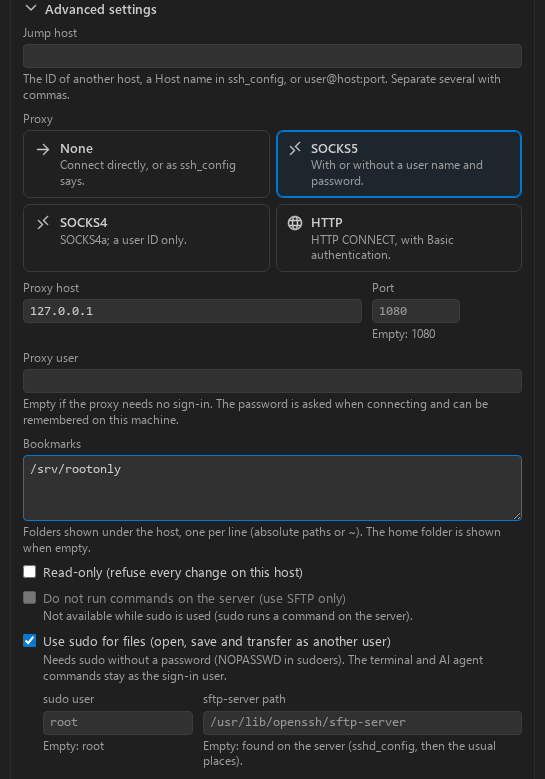
#5.6 Advanced settings
| Item | Description |
|---|---|
| Jump host | The host to jump through: the ID of another host, a Host name in ssh_config, or user@host:port. You can separate any number of them with commas |
| Proxy | Choose from the "None", "SOCKS5", "SOCKS4" and "HTTP" cards. When you choose one, fields appear for the proxy host, the port (if empty, 1080 for SOCKS and 8080 for HTTP) and the user (leave empty if no sign-in is needed) (11.5 SOCKS / HTTP proxies) |
| Bookmarks | Folders shown under the host (one per line; absolute paths or ~). If empty, the home folder is shown. You can also add them with "Add to Bookmarks" in the tree's context menu |
| Read-only | 5.4 Environment tags and read-only |
| Do not run commands on the server | Handles files over SFTP only, without a shell. The fast methods (tar, cp -a, rm -rf) and the terminal are not used |
| Use sudo for files | Opens, saves and transfers files as another user. When selected, fields appear for the user (root if empty) and the sftp-server path (searched for on the server if empty). Cannot be selected together with "Do not run commands on the server" (11.6 Work as another user with sudo) |
| Safe mode | Sends requests one at a time in small pieces. For servers that become unstable with simultaneous requests |
| Files to send at once | If empty, the value of the setting sshvisor.transfer.parallelFiles (default 128) |
| Keepalive interval (seconds) | If empty, ServerAliveInterval in ssh_config or the value of the setting. 0 sends none |
#5.7 Edit, duplicate and delete
Right-click a host in the Hosts view and choose one of the following.
- "Edit Host..." (
F2): Opens the form at step 2. The host ID cannot be changed. If you change how a connected host connects (destination, authentication, jump host, proxy, sudo and so on) and save, SSHVisor reconnects with the new settings (open terminals reconnect when you pressEnter). - "Duplicate": Opens the add form filled in with the same values. Different suggestions are filled in for the host ID and the name (the name becomes "… (copy)").
- "Delete Host" (
Delete): Deletes the host after asking you. Its remembered passwords and passphrases are deleted too. Nothing changes on the server. - "Copy Connection Values (ssh Command)": Copies a command for logging in to the same host with
sshin a terminal (for example,ssh -p 2222 deploy@web01).
#5.8 How SSHVisor uses ssh_config
- SSHVisor has OpenSSH's
ssh -Gresolve the connection values (HostName, User, Port, IdentityFile, ProxyJump, ProxyCommand, known_hosts and so on) for the name in the host field, and then applies the values you entered in the form on top of them.IncludeandMatchwork just as they do for ssh in a terminal. - SSHVisor never writes to ssh_config.
- If ssh is not available on your machine, SSHVisor reads ssh_config approximately (
Match execis not run). The first stage of the test connection shows a warning about this. ControlMaster,GSSAPIAuthentication, certificates, FIDO security keys and port forwarding are not used. If they are in ssh_config, the first stage of the test connection tells you.- You can change which ssh_config is read and which ssh is used with the user settings
sshvisor.sshConfigFileandsshvisor.sshPath(15.1 Settings).
#6. Test connection
#6.1 The nine stages
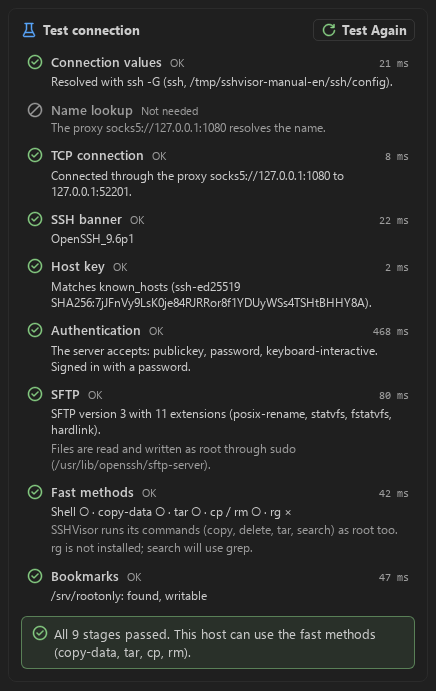
Select "Test Connection" on the right of the host form to check the following nine stages in order. Each stage shows a mark (✓ OK, ! needs attention, × failed), the time it took and a one-line result. You can test before saving. "Test Connection" in the context menu of the Hosts view also opens the host form and starts the test.
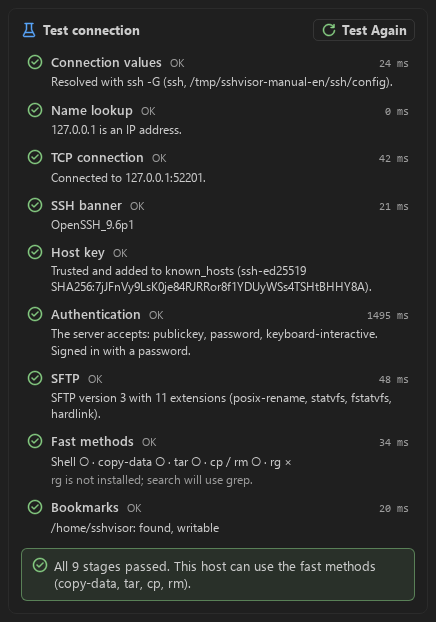
| Stage | What is checked |
|---|---|
| Connection values | Whether ssh -G can resolve the values; the ssh and ssh_config used. A warning if there are options that SSHVisor does not use |
| Name lookup | Whether the host name resolves to an IP address (skipped when connecting through a jump host or ProxyCommand. When connecting through a proxy, the proxy resolves the name) |
| TCP connection | Whether the port can be reached. When connecting through a proxy, which proxy was used |
| SSH banner | The SSH version of the server |
| Host key | Whether the key matches the one in known_hosts (6.2 The host key of a new host) |
| Authentication | The methods the server accepts, and the method that succeeded |
| SFTP | Whether SFTP can be opened; the number of extensions. With sudo, which user it was opened as |
| Fast methods | Whether shell, copy-data, tar, cp / rm and rg can be used. With sudo, whether commands also run as the same user |
| Bookmarks | Whether the bookmarks (or the home folder if there are none) exist and are writable |
At the end, a summary appears (for example, "All 9 stages passed. This host can use the fast methods (copy-data, tar, cp, rm)."). "Test Again" runs the test again, and "Stop" stops it partway.
#6.2 The host key of a new host
When you connect to a host for the first time, the host key stage stops at "Needs attention", and the fingerprint (SHA256) of the host key appears in the report.
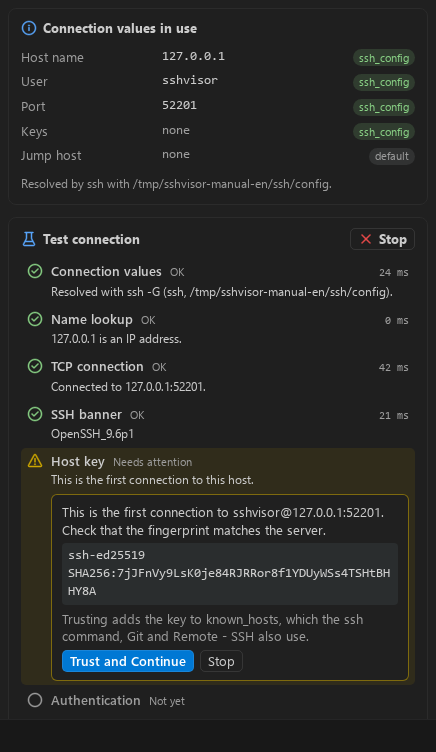
If it matches the fingerprint you got from the server administrator, select "Trust and Continue". The key is added to known_hosts, and the test moves on to the next stage. ssh in a terminal, Git and Remote - SSH use the same known_hosts. If it does not match, or you are not sure, select "Stop".
#6.3 When a stage fails
The failed stage shows × and what happened, together with what to check.
| Stage that failed | Common causes and what to check |
|---|---|
| Connection values | A mistake in ssh_config. Look at the line in the message and fix ssh_config |
| Name lookup | A typo in the host name, DNS, or the VPN is not connected |
| TCP connection | The port number, whether the server is running, firewalls. When connecting through a proxy: the proxy host, port and type, the proxy user and password, and whether the proxy allows that destination (the proxy's answer is shown. See 11.5 SOCKS / HTTP proxies) |
| Host key | The key is different from before (11.3 Host keys), or you did not trust it |
| Authentication | The user name, the password, whether the public key is in ~/.ssh/authorized_keys on the server, and whether the key file exists on this machine. The methods the server accepts are also shown |
| SFTP (sudo) | Whether sudo asks for a password (NOPASSWD in sudoers), whether sudoers allows becoming that user, requiretty, the sudo user, and the location of sftp-server (11.6 Work as another user with sudo) |
If authentication fails, the "Try with a Password" and "Choose Another Key" buttons also appear.
#7. Working with server files in the Explorer
#7.1 Add to the workspace
Use "Add Remote Folder to Workspace" on a host, bookmark or folder in the Hosts view (the folder icon on the right of the row, or the context menu) to add a server folder to the workspace. You can also choose a host and a folder with "SSHVisor: Add Remote Folder to Workspace..." in the Command Palette.
- The name is "host name — path" (for example, "Web Dev — /home/sshvisor/app").
- If you add it in a window with a local folder open, the Explorer shows your local folder and the server folder side by side, as with SSH FS. The window becomes "Untitled (Workspace)".
- If you save it with File > Save Workspace As..., the folders appear side by side the next time you open it, and they connect when you open the workspace (if the password is not remembered, you are asked for it).
- "Open Remote Folder in New Window..." opens a new window with only that folder.
- If you add the first folder in a window with no folders, VS Code restarts the extensions. If the password is not remembered, you are asked for it again.
- Before adding the root folder (/) of a server, or a folder whose path also exists on this computer (for example, the home folder /home/
), SSHVisor asks you to confirm. Some other extensions (such as Git and linters) treat a workspace folder as a folder on this computer. They may then scan the folder with the same path on this computer instead of the server, and use a lot of CPU (for /, the whole disk of this computer). Add only the folder you work in, or open files from the Hosts view. Choose "Add Anyway" to add it. - When VS Code starts with such a server folder in the workspace, SSHVisor shows a notification. Choose "Remove from Workspace" to remove it, or "Do Not Show Again for This Folder" to stop the notification for that folder.
#7.2 What you can do
Explorer operations work just as they do for local folders.
| Operation | On the server |
|---|---|
| Open, edit, save | Saving writes the file to the server |
New File, New Folder, Rename (F2) |
Files and folders are created and renamed on the server |
Delete (Delete) |
Servers have no trash, so this cannot be undone. VS Code asks whether to permanently delete |
| Copy, Cut, Paste | Also works between local and server (local ⇔ server) and between hosts (host ⇔ host). Copies within the same host are done on the server |
| Drag and drop | From local folders, other hosts, or the file manager of the OS. A plain drag moves; hold Ctrl to copy. A move to another host copies the files and then deletes the originals, so SSHVisor asks you first |
| Copy Path, Copy Relative Path | Copies the path on the server (in the form /var/log/app.log). The separator is / on every OS. The relative path is relative to the server folder that you added to the workspace |
When you send many files at once, SSHVisor reads and writes many files at the same time (up to 128 by default). Large files are read and written over four channels in parallel.
#7.3 SSHVisor items in the context menu
Right-click a server folder or file in the Explorer to see the SSHVisor items.
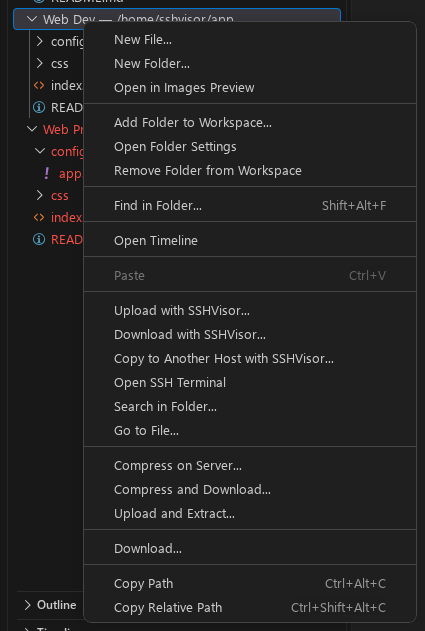
| Item | Where it appears | Description |
|---|---|---|
| Upload with SSHVisor... | Server folders | Choose local files or folders and send them (9. Upload, download and copy) |
| Download with SSHVisor... | Server files and folders | Choose a local folder and receive them |
| Copy to Another Host with SSHVisor... | Server files and folders | Choose a folder on another host and copy them there (9.4 Copy to another host) |
| Open SSH Terminal | Server folders | Opens a terminal in that folder (10. Terminal) |
| Search in Folder... | Server folders | Opens the Search view with that folder as the scope (7.7 Search files on the server) |
| Go to File... | Server folders | Filters the files in that folder by name and opens one (7.8 Go to a file by name) |
| Compress on Server... | Server files and folders | Creates an archive in the same folder, on the server (9.10 Compress on the server) |
| Compress and Download... | Server files and folders | Compresses on the server, then downloads the archive to your machine (9.12 Compress and download, upload and extract) |
| Extract on Server... | Archives on the server | Extracts the archive on the server (9.11 Extract on the server) |
| Upload and Extract... | Server folders | Sends a local archive and extracts it on the server |
| Upload to a Host with SSHVisor... | Contents of an archive opened with ArcVisor | Choose a host and a folder and send them (9.13 Use with ArcVisor) |
VS Code's own "Download..." also appears in the same menu. For large folders and files, "Download with SSHVisor..." is faster and does not hold the whole file in memory. VS Code's own "Find in Folder..." finds nothing in server folders. Use "Search in Folder..." instead.
#7.4 Production hosts
Files and folders on hosts with the production environment tag have red names in the Explorer, tabs and breadcrumbs, and a "P" badge. While one is open, the Status Bar shows the host name on a red background.
On production hosts, SSHVisor asks before deleting files and folders, and before copies and moves that overwrite files.
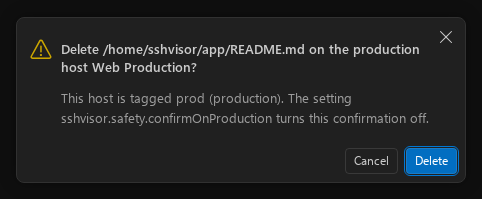
- "Delete" continues, and "Cancel" stops. When you stop, VS Code shows "The operation was cancelled.", so select "Cancel" to close it.
- Saving in the editor is not confirmed (being asked at every save would make you stop reading the question).
- You can turn this confirmation off with the setting
sshvisor.safety.confirmOnProduction.
#7.5 Show changes made on the server
When other people or programs (a terminal, cron, a deployment and so on) change files on the server, SSHVisor notices in the following ways and tells VS Code.
| What is watched | How | Time until it shows |
|---|---|---|
| Files open in the editor | Every 5 seconds, SSHVisor asks the server for the modification time and size | About 5 seconds. If a file changed, the editor reloads it; if it was deleted, the tab shows "(Deleted)" |
| Server folders added to the workspace | If the server has inotifywait (inotify-tools), SSHVisor watches on the server |
Right away. Files appear in and disappear from the Explorer |
- Files with unsaved changes are not reloaded. When you save, VS Code tells you that the file on disk is newer and offers to compare them, so choose which version to keep.
- Only connected hosts are watched. SSHVisor never connects or asks for a password just to watch. Changes made while a host is disconnected are noticed after it reconnects.
- On servers without
inotifywait(the Ubuntu default), use "Refresh Explorer" in the Explorer to reload new or deleted files in folders. If you setsshvisor.files.watchtofoldersByPolling, folders that you recently opened in the Explorer are also reloaded and watched (this sends more requests to the server). - You can change how SSHVisor watches with the setting
sshvisor.files.watch(auto: as in the table above,foldersByPolling,openFiles: only open files,off: no watching). The interval between checks issshvisor.files.watchIntervalSeconds(default 5 seconds).
File attributes and folder listings are remembered for a short time (attributes for 5 seconds, listings for 10 seconds; setting sshvisor.files.cacheSeconds). If a change does not show up right away, wait a moment and select "Refresh Explorer". "Refresh" in the Hosts view discards what is remembered and reloads.
#7.6 Transfer progress
While many files (two or more) or large files (1 MiB or more) are being transferred in the Explorer, the Status Bar shows the direction (↑ sending, ↓ receiving), the number of files finished, the number waiting and the speed. It disappears a few seconds after the transfer ends. If some files could not be transferred, the number of failures appears on a yellow background. Select it to open the Transfers view (the Output (log) if something failed); the view also shows an "Explorer" row, but only while transfers are running.
#7.7 Search files on the server
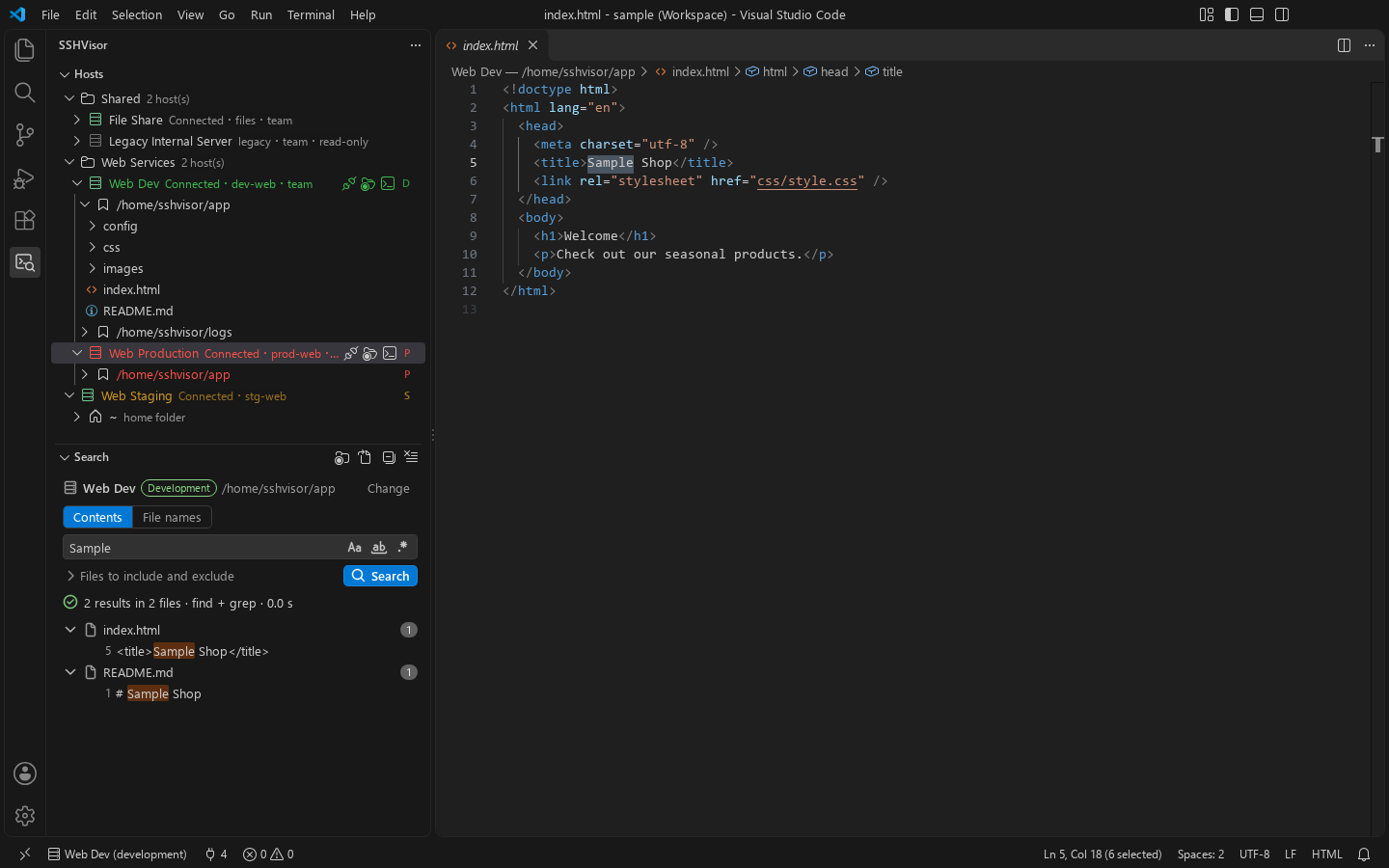
VS Code's search (Ctrl+Shift+F) cannot look inside server folders. Use the "Search" view in the SSHVisor Side Bar to search on the server (SSHVisor runs rg on the server, or grep if rg is not available, so files are not brought to your machine).
Choose the scope
- The top of the view shows the scope (host, environment tag, folder). "Change" lets you choose again from the server folders in the workspace, bookmarks, or a path you enter.
- Right-click a folder in the Explorer or the Hosts view and choose "Search in Folder..." to open the Search view with that folder as the scope.
- If no scope is chosen, SSHVisor uses the workspace folder of the open server file, or else the first server folder in the workspace. The scope and what you entered are remembered and are still there the next time you open the view.
Search
- Choose "Contents" or "File names".
- Enter the text to search for and press
Enter(or select "Search"). While searching, you can stop with "Cancel Search" (Escalso stops it). - Use the buttons on the right of the input box to toggle "Match Case" (Aa), "Match Whole Word" (ab) and "Use Regular Expression" (.*).
- Expand "Files to include and exclude" to narrow the search with comma-separated globs (for example,
*.php, src/**orvendor/**, *.min.js). "Use exclude settings" also excludes VS Code'sfiles.excludeandsearch.exclude(such asnode_modules). "Use .gitignore" works only when the server hasrg.
- Hidden files (such as
.env) are searched too..gitignoreis not read by default (so thatrgandgrepgive the same results). - The results show the number of matches in each file and the matching lines with the matches highlighted. Click a matching line to open the file in the editor with that match selected (hold
Altto open it to the side). Click a file row to collapse it. Use the up and down keys to move between rows,Enterto open, and the left and right keys to collapse and expand. - Right-click a result row to choose "Open", "Open to the Side", "Copy Path" or "Reveal in Explorer".
- SSHVisor receives up to 1,000 lines per file and 10,000 matches in total. Beyond that, it stops and shows "Stopped at the limit", so narrow the search with the folder or the files to include. Each line is received up to its first 4 KiB, and for long lines only the text around the match is shown.
- With
rgand GNUgrep -P, regular expressions can use a syntax close to JavaScript (such as\d). With BusyBoxgrep, use extended regular expressions (such as[0-9]). - Text is searched as UTF-8. Japanese text in files encoded in Shift_JIS or similar encodings cannot be found.
- Search cannot be used with accounts limited to SFTP, hosts set to "Do not run commands on the server", hosts where sudo allows only sftp-server (11.6), or servers that have neither
rgnorgrepandfind(the reason is shown).
The buttons at the top of the view are "Choose Folder to Search", "Go to File...", "Collapse All" and "Clear Search Results".
#7.8 Go to a file by name
Instead of VS Code's Quick Open (Ctrl+P), use "Go to File..." (the button at the top of the Search view, the context menu of a folder, or the Command Palette) to filter the files in the scope folder by name and open one.
- SSHVisor runs
rg --fileson the server (orfindif rg is not available) to make the list and shows it in a Quick Pick. You can filter by part of the name or by a folder name. - Up to 50,000 files are listed. For larger folders, the list says "only the first N files", so choose a smaller folder.
- Files matched by VS Code's
files.excludeandsearch.exclude(such asnode_modules) are not listed.
#8. The host tree
#8.1 Rows and what they show
The Hosts view is ordered folders → hosts → bookmarks (or the home folder if there are none) → folders and files on the server. Folders and hosts are sorted by name; folders and files on the server are sorted by name with folders first.
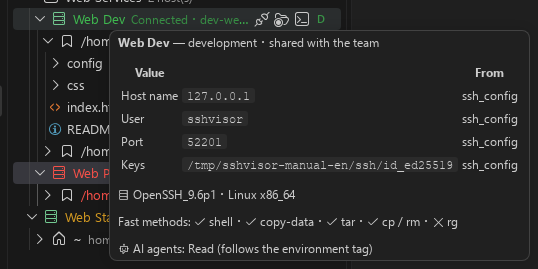
Hover over a host to see the connection values in use and where they come from, the server version, and the fast methods that can be used. For hosts that use a proxy or sudo, "Proxy" and "Files as" rows also appear.
#8.2 Buttons and context menus
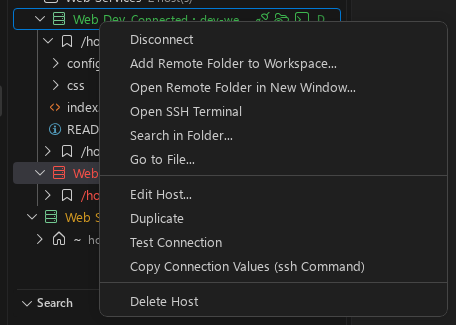
Hover over a row to see buttons for the main actions on its right. Right-click a row to choose from all the actions for it.
| Row | Buttons on the right | Context menu |
|---|---|---|
| Host | Connect / Disconnect, Add to Workspace, Open SSH Terminal | Connect / Disconnect, Add to Workspace, Open in New Window, Open SSH Terminal, Search in Folder (the home folder), Go to File, Edit Host, Duplicate, Test Connection, Copy Connection Values, Delete Host |
| Bookmark, folder | Add to Workspace, Upload with SSHVisor, Open SSH Terminal | Add to Workspace, Open in New Window, Open SSH Terminal, Search in Folder, Go to File, Upload / Download / Copy to Another Host with SSHVisor, Compress on Server, Compress and Download, Upload and Extract, New File, New Folder, Rename, Delete, Copy Path, Add to / Remove from Bookmarks, Refresh |
| File | Download with SSHVisor | Download / Copy to Another Host with SSHVisor, Compress on Server, Compress and Download, Extract on Server (archives only), Rename, Delete, Copy Path |
"Copy Path" in the tree copies the path on the server (for example, /home/sshvisor/app/index.html).
#8.3 Keyboard shortcuts
Keys act on the focused row (the row with an outline, which you move with the arrow keys). If several rows are selected and the focused row is one of them, Delete deletes all the selected files and folders. The keys do not work while you are typing in the tree's filter box.
| Key | Action |
|---|---|
F2 |
Rename a file or folder. On a host, opens the edit form |
Delete (Cmd+Backspace on macOS) |
Delete files or folders (you can select several). On a host, deletes the host |
Ctrl+Enter |
Connect / disconnect a host |
Enter |
Open a file |
#8.4 Drag and drop
| What you drag | Where you drop it | Result |
|---|---|---|
| Server files and folders | A folder on the same host | Moves them (after asking you) |
| Server files and folders | A folder on another host | Copies them from host to host, after asking you (9.4 Copy to another host) |
| Hosts | A folder, another host, or an empty area | Changes the folder of the host, so you can organize your hosts |
| Local files and folders from the OS or the Explorer | A bookmark or folder | Uploads them with SSHVisor (9.2 Upload). If you drop a single local archive, you choose between "Upload" and "Upload and Extract" (9.12 Compress and download, upload and extract) |
| Contents of an archive opened with ArcVisor (in the Explorer) | A bookmark or folder | Reads the contents and uploads them to the server (9.13 Use with ArcVisor) |
#9. Upload, download and copy
#9.1 When to use them instead of the Explorer
For everyday files, you can drag and drop or copy in the Explorer. In the following cases, use SSHVisor's upload, download and host-to-host copy instead. They all appear in the Transfers view (9.6 The Transfers view), where you can watch their progress, and if they stop, you can finish them from where they stopped.
- Folders with many files: if the server has a shell and tar, the files are bundled and sent with tar. On a server with a 52 ms round trip, uploading 1,000 small files took 0.5 seconds (about 5 seconds by dragging in the Explorer).
- Large files: they are sent over four channels in parallel. On a server with a 52 ms round trip, downloading a 64 MiB file took about 1.6 seconds (about 6 seconds by copying in the Explorer). The whole file is not held in memory, so files over 2–4 GiB can be sent too (dragging and copying in the Explorer read the whole file into memory, so they cannot send such files).
- When you want to choose how files with the same name are handled, retry only the files that failed, or finish a stopped transfer from where it stopped.
#9.2 Upload
Start in one of these ways:
- Right-click a server folder in the Explorer and choose "Upload with SSHVisor...".
- Choose "Upload with SSHVisor" on a bookmark or folder in the Hosts view (the button on the right of the row, or the context menu).
- Drop files or folders from the file manager of the OS, or from a local folder in the Explorer, onto a bookmark or folder in the Hosts view.
If you start from a button or the context menu, first choose "Files…" or "Folders…" (the file pickers on Windows and Linux cannot select files and folders at the same time), then choose what to send.
#9.3 Download
In the Explorer or the Hosts view, right-click server files or folders (you can select several) and choose "Download with SSHVisor...". Choose the local folder to save them in, and the download starts.
#9.4 Copy to another host
You can copy files or folders on one host to a folder on another host. Start in one of these ways:
- In the Hosts view or the Explorer, right-click server files or folders (you can select several) and choose "Copy to Another Host with SSHVisor...". Choose the destination host, and then the folder (a bookmark, the home folder, or enter a path).
- In the Hosts view, drag files or folders to a folder on another host (the copy starts after SSHVisor asks you).
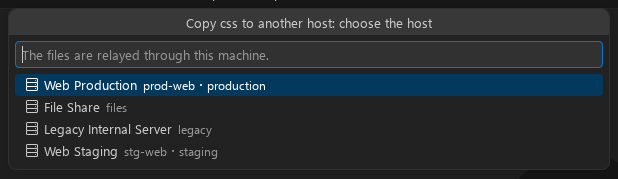
- The files are relayed through this machine to the destination (the servers do not connect to each other directly, so the source server does not need credentials for the destination). Nothing is written to your local disk.
- If both hosts have a shell and tar, the tar output on the source is streamed straight into tar on the destination (fast even with many small files). Large files are read in ranges while they are written; everything else is read and written over SFTP.
- How files with the same name are handled, and the confirmation on production hosts (decided by the environment tag of the destination), are the same as for uploads. You cannot copy to a read-only host (SSHVisor tells you "The host … is read-only, so files cannot be copied to it.").
- To copy within the same host, use copy in the Explorer or the tree as before (it is fast because it is done on the server).
#9.5 Files with the same name
If a file with the same name already exists at the destination, SSHVisor asks how to handle it before sending.
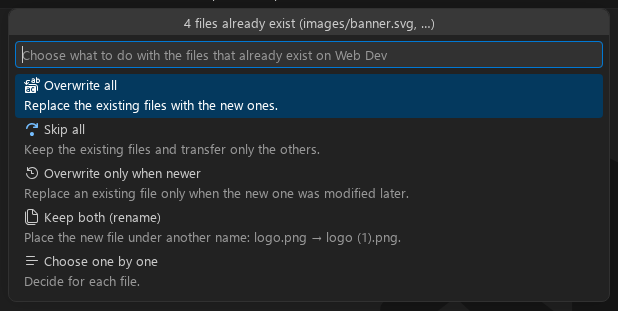
| Choice | Result |
|---|---|
| Overwrite all | Replaces the existing files with the new ones |
| Skip all | Keeps the existing files and sends only the others |
| Overwrite only when newer | Replaces a file only when the one being sent was modified later (compares the modification times) |
| Keep both (rename) | Places the new file under another name (logo.png → logo (1).png) |
| Choose one by one | You choose for each file. If you select "For the remaining files too", you are not asked again after that |
If files will be overwritten on a production host, SSHVisor shows how many before sending and asks you to confirm ("Overwrite", "Skip", "Cancel").
#9.6 The Transfers view
When a transfer starts, "SSHVisor Transfers" opens in the bottom Panel, and the transfer joins the queue. Up to two transfers run at the same time, and transfers that use the same host run one at a time (the others are "Waiting"). You can also open the view with "SSHVisor: Show Transfers" in the Command Palette.
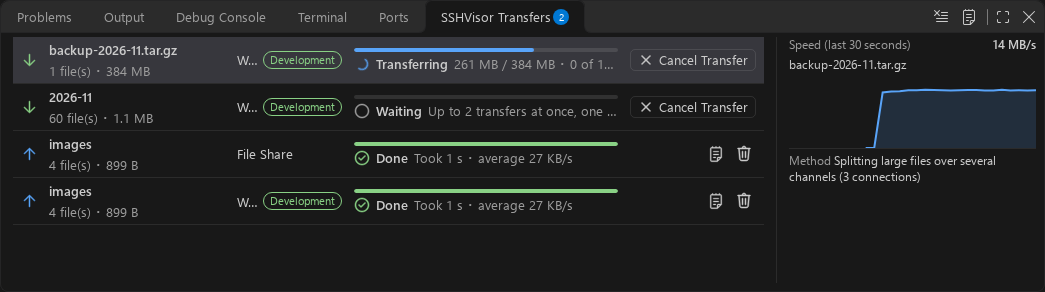
Each row shows the following, from left to right.
| Column | Contents |
|---|---|
| Direction | ↑ upload, ↓ download, ⇄ copy, compress and extract on the server (9.10 Compress on the server). When the view is wide, text labels also appear |
| Name and size | The name of what is being sent, the number of files and the size |
| Host | The host name and environment tag ("source → destination" for copies) |
| Progress | A progress bar, the state (Transferring, Compressing, Extracting, Waiting, Done, Some failed, Failed, Cancelled, Interrupted) and details (amount, speed, time left and so on). Bar colors: transferring blue, done green, failed red, interrupted amber, cancelled and waiting gray |
| Buttons | Cancel Transfer, Resume, Retry Failed, Open Folder (downloads), Open with ArcVisor (downloads of archives, when ArcVisor is installed), Show Log, Remove from List |
- You can also right-click a row to choose the same actions.
- Select a row to show, on the right, a line chart of that job's speed over the last 30 seconds, the current speed, the method (bundled with tar, split over several channels, or several files at a time over SFTP; "(N connections)" when connections were added), and the files that failed with their reasons. With no row selected, the chart shows the overall speed of the running transfers.
- Transfers in the Explorer (dragging or copying) also appear in an "Explorer" row, but only while they are running (they cannot be cancelled here).
- The tab of the view shows the number of running transfers, and the Status Bar shows "N transfer(s) ・ M%" (select it to open the view).
- "Clear Finished Transfers" in the title of the view removes finished transfers from the list. The last 50 are kept and are still shown after you reopen VS Code.
- To keep the view from opening when a transfer starts, turn off the setting
sshvisor.transfer.revealView.
#9.7 Resume a transfer
"Resume" appears on transfers you cancelled, transfers that failed as a whole (for example, because the connection dropped), and transfers that were running when VS Code closed ("Interrupted").
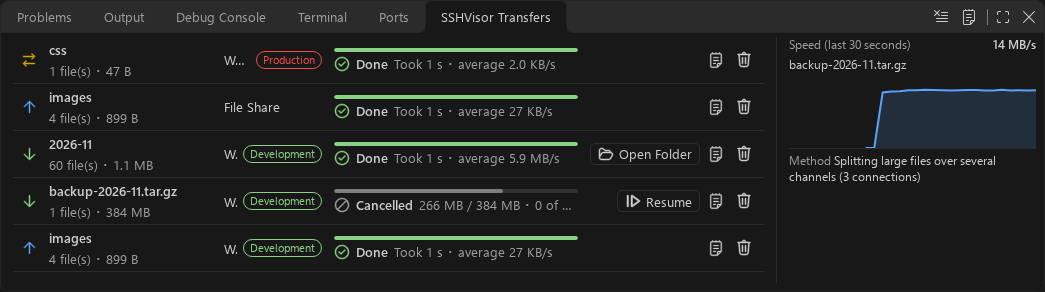
- Select "Resume" to connect (you may be asked for a password) and send the rest, skipping the files that were already sent.
- A large file that was partly sent continues from the end of the part already sent. If the source changed (different size or modification time), or the contents at the destination differ from the part already sent, that file is sent again from the start.
- Only the files that the transfer was writing are continued. Anything that was being sent bundled with tar is bundled and sent again.
- A large download that stopped partway is left on your machine so it can be continued. If you are not going to resume it, delete that file.
- If there are interrupted transfers when you reopen VS Code, SSHVisor tells you "N transfer(s) stopped when VS Code closed.".
#9.8 Notifications when a transfer finishes
Progress during a transfer is shown in the Transfers view; notifications appear only when a transfer finishes or fails.

When a transfer finishes, SSHVisor tells you how many files it sent, how much, how long it took, and how many it skipped. If something failed, it shows the number of failures, the first reason, and "Retry Failed". Downloads also show "Open Folder" (and also "Open with ArcVisor" when you received a single archive and ArcVisor is installed). When you compressed on the server, "Download" in the notification receives the archive right away. Sent files keep their original modification times. Symbolic links to folders are not followed.
#9.9 Speed and the number of connections
- Downloads over a single SSH connection are limited by the send buffer of the server (about 45 MiB/s at a 50 ms round trip). For downloads of 256 MiB or more, and on the source side of copies, SSHVisor adds connections to receive the data (setting
sshvisor.transfer.connections, default 3). Downloads of 384 MiB at 53–103 ms round trips became 1.3–1.5 times faster. - Connections are added only for hosts that can sign in without asking you (an SSH agent, a key without a passphrase, or a password or passphrase remembered on this machine). For hosts whose password is not remembered, or with two-factor authentication, no connections are added and a single connection is used. Added connections are closed 30 seconds after the transfer ends.
- No connections are added for uploads or on the destination side of copies (adding them made things slower).
- If you do not want connections to be added, set
sshvisor.transfer.connectionsto 1.
#9.10 Compress on the server
You can bundle server files and folders into one archive on the server. The data does not pass through your machine, so even large folders are archived quickly, and the archive can stay on the server (for example, as a backup before you change settings, or to bundle files before handing them to someone).
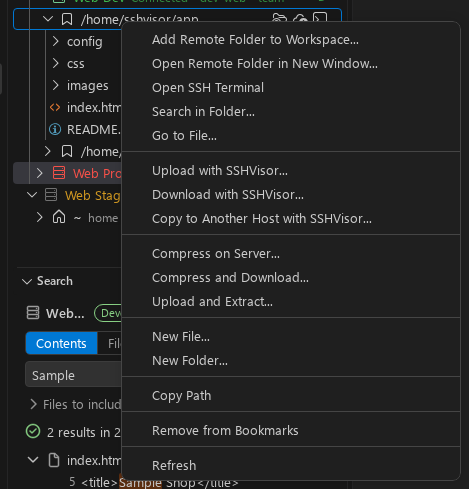
- In the host tree or the Explorer, right-click server files or folders and choose "Compress on Server...". You can select several if they are in the same folder.
- Choose the format. Formats that cannot be used on the server are shown with the reason.
- Enter the name of the archive. It is created in the same folder as the selected items (if one with the same name exists, you are asked whether to overwrite it).
- A "Compress" row joins the Transfers view and shows "Compressing" and the progress. When it is done, "Download" in the notification receives the archive on your machine right away.
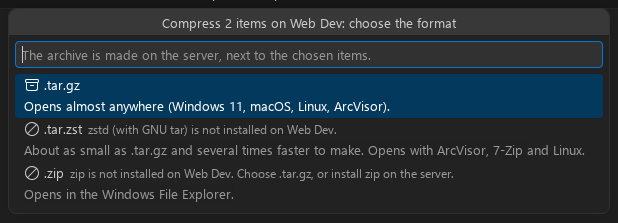
| Format | Needed on the server | Best for |
|---|---|---|
.tar.gz |
tar and gzip (almost every server has them) | Opens anywhere (Windows 11, macOS, Linux, ArcVisor) |
.tar.zst |
zstd and GNU tar | About as small as .tar.gz and several times faster to create (opens with ArcVisor, 7-Zip and Linux) |
.zip |
zip (not in the Ubuntu default) | Opens in Windows File Explorer |
- While it is being created, the archive has a hidden temporary name in the same folder (
.<name>.sshvisor-….tmp), and it is renamed when it is complete. It is deleted if you cancel or if it fails. - Links inside folders are stored as links; they are not followed.
- On production hosts, SSHVisor asks before creating the archive. It cannot be used on read-only hosts (Compress and Download can be).
- On hosts that use sudo, the archive is created as that user (11.6 Work as another user with sudo).
- It cannot be used with accounts limited to SFTP, hosts set to "Do not run commands on the server", or hosts where sudo allows only sftp-server.
#9.11 Extract on the server
You can extract an archive on the server (.zip, .tar, .tar.gz / .tgz, .tar.xz, .tar.bz2, .tar.zst) right there on the server.
- Right-click the archive and choose "Extract on Server...".
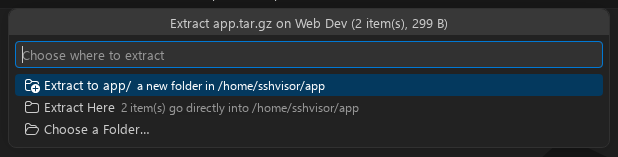
- SSHVisor reads and checks the list of contents, then shows a list of destinations. If everything is inside a single folder, "Extract Here" (which creates that folder) comes first; otherwise "Extract to
/" (a new folder) comes first. With "Choose a Folder…", you can extract somewhere else. - If files already exist at the destination, choose "Overwrite" or "Skip existing files".
- An "Extract" row joins the Transfers view.
- Archives are not extracted if they contain anything that would be written outside the destination (absolute paths, names that go up with "..", links that point outside), devices and other special files, or encrypted ZIP files. An archive is also not extracted if some names or links in it cannot be read, because it cannot be checked.
- If the server has less free space than the extracted size, you are told before extracting.
- File owners are not restored (even when you extract as root with sudo, files do not get the owner numbers from another machine).
- Extracting
.zipneeds Info-ZIP unzip on the server (not in the Ubuntu default. BusyBox unzip is not used because it cannot check the contents). If it is missing, you can use the ArcVisor route in 9.13 Use with ArcVisor. - On servers with BusyBox tar, you cannot choose "Skip existing files" (you can overwrite or cancel).
- If you cancel, tar on the server also stops. The files extracted so far are kept.
#9.12 Compress and download, upload and extract
These commands do two operations at once. Two rows appear one after the other in the Transfers view.
- Compress and Download... (context menu of server files and folders): choose the format, the name and a local folder → compress in a temporary folder on the server → download → delete the temporary folder.
- Upload and Extract... (context menu of server folders): choose a local archive and the destination → upload to a temporary folder on the server → check the contents and extract → delete the temporary folder.
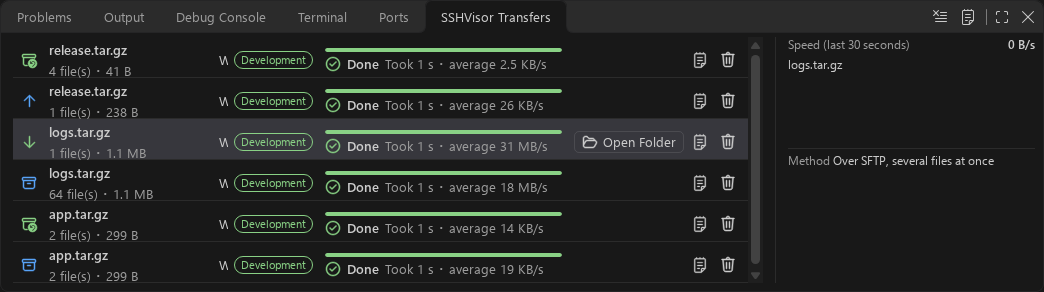
- The download and the upload use the same fast methods as ordinary transfers, and if they stop, you can continue them with "Resume".
- The temporary folder is
sshvisor-…in/tmpon the server (or inTMPDIRif it is set). If VS Code closes partway, it may be left behind (the OS cleans it up). - Compress and Download does not change your files, so it can be used on read-only hosts too.
- For Upload and Extract, you choose the destination and how to handle existing files first. The contents are checked after the upload, and if anything cannot be extracted safely, SSHVisor tells you and does not extract.
- When you drop a single local archive onto a folder in the host tree, you can also choose between "Upload" (place the archive as it is) and "Upload and Extract".
- Images, videos and files that are already compressed do not get smaller, so compressing only adds time. Use the ordinary "Download with SSHVisor..." for them. Text (such as logs) shrinks to about 20%, so on slow connections it is faster than an ordinary download (at a 50 ms round trip, a 71.5 MiB log went from 3.7 seconds to 2.8 seconds, and to 1.2 seconds with
.tar.zst).
#9.13 Use with ArcVisor
If the sister tool ArcVisor (an extension that opens archives in the Explorer without extracting them) is installed, you can use the two together as follows.
- Open the archives you receive: when you download a single archive (including with Compress and Download), "Open with ArcVisor" appears in the notification and on the row in the Transfers view. You can look inside without extracting it and take out only the files you need.
- Send the contents of an archive opened with ArcVisor to a server: show the archive in the Explorer with ArcVisor, then drop folders or files inside it onto a folder in the host tree, or choose "Upload to a Host with SSHVisor..." in the context menu and choose a host and a folder. SSHVisor reads the contents and sends them with the same fast methods as an ordinary upload.
- You can put the contents of a ZIP file on a server even if the server has no unzip (tar on the server is enough).
- ZIP file names created on Japanese Windows (Shift_JIS) also arrive with the names that ArcVisor read (unzip on the server garbles them).
- If you drop the top level of an archive, it is sent as a folder named after the archive (
siteforsite.zip). - Each file can be up to 512 MiB. Extract larger files on your machine first.
#10. Terminal
Choose "Open SSH Terminal" in the context menu of a server folder in the Explorer, or on a host, bookmark or folder in the Hosts view, to open a shell that starts in that folder.
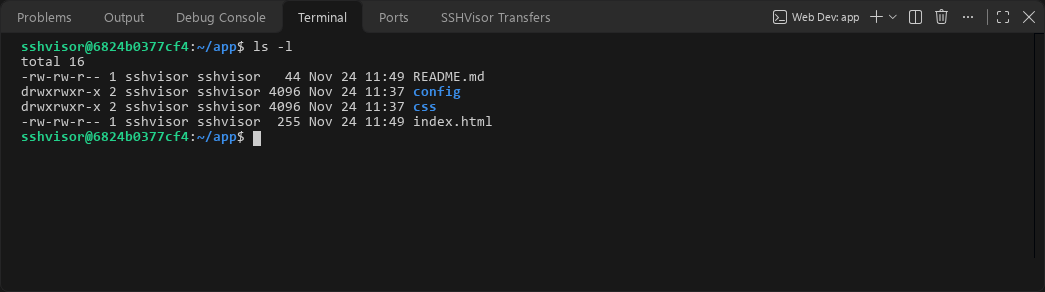
- It shares the connection of the host, so you are not asked for the password again.
- When you open it from a host row, it starts in the first bookmark (or the home folder if there are none).
- The size of the terminal follows the size of the window.
- Terminals for production hosts have red tabs.
- It cannot be opened for accounts limited to SFTP or for hosts set to "Do not run commands on the server" (SSHVisor tells you why).
- Even on hosts that use sudo, the terminal opens as the user you signed in as (when you need sudo, type it in the terminal).
- If the connection drops, the terminal stays open and shows "The connection to
was lost ( ). Press Enter to reconnect." Press Enterto reconnect and reopen the shell in the same folder (anything that was running in the previous shell has ended).
#11. Connections and security
#11.1 Authentication order
For hosts whose authentication is "Automatic", SSHVisor tries the following in order, as OpenSSH does.
- Keys from the SSH agent (
IdentityAgentin ssh_config → the settingsshvisor.ssh.agent→SSH_AUTH_SOCK. On Windows, the OpenSSH agent) - Key files (
IdentityFilein ssh_config; if there is none, the default keys such as~/.ssh/id_ed25519). The passphrase is asked for only when the server accepts the key - Keyboard-interactive (such as two-factor verification codes)
- Password (asked for up to three times in total)
#11.2 Remember passwords and passphrases
Passwords and passphrases are asked for in an input box at the top of the screen.

- The key button at the right edge of the input box toggles "Remember on this machine". The text below the box says whether the value will be remembered.
- Remembered values are kept in VS Code's SecretStorage (Windows Credential Manager, the macOS Keychain and so on). They are never written to host definitions, settings or logs.
- Values are remembered only after authentication succeeds. If a remembered value does not work, it is deleted and you are asked again.
- If input is needed when reconnecting after the connection dropped, SSHVisor does not suddenly show the input box; it asks with a notification with "Enter Now" and "Later".
- To delete a remembered value, edit the host, clear "Remember the password or passphrase on this machine" and save. Deleting the host also deletes it.
#11.3 Host keys
- Host keys are checked against the same known_hosts as OpenSSH (
UserKnownHostsFilein ssh_config;~/.ssh/known_hostsby default). - For a new host, SSHVisor shows the fingerprint so you can check it, and adds the key to known_hosts when you trust it. It follows
StrictHostKeyCheckingin ssh_config (yesrefuses without asking;accept-newandnoadd the key without asking). - If a key different from before appears, someone may be impersonating the server, so SSHVisor does not connect. You can open the file with "Open known_hosts". If the server key was intentionally regenerated, check the new fingerprint with the administrator, then delete the old line for that host from known_hosts. There is no button to overwrite the key and connect.
#11.4 Jump hosts and ProxyCommand
- SSHVisor connects through jump hosts (
ProxyJumpin ssh_config, or "Jump host" in the host). Any number of jump hosts can be chained. If you write the ID of an SSHVisor host as a jump host, that host's authentication settings and remembered password are used. ProxyCommandin ssh_config can also be used (ifProxyJumpis also set, it takes precedence).- For SOCKS / HTTP proxies, see the next section, 11.5 SOCKS / HTTP proxies.
#11.5 SOCKS / HTTP proxies
From places where you cannot connect to SSH servers directly, such as a company network, you can connect through a proxy. Edit the host, choose the type under "Proxy" in "Advanced settings", and enter the proxy host (5.6 Advanced settings).
| Type | What is used |
|---|---|
| SOCKS5 | A SOCKS5 proxy (default port 1080). User name and password authentication can also be used |
| SOCKS4 | A SOCKS4 / 4a proxy (default port 1080). Only a user ID is sent |
| HTTP | CONNECT through an HTTP proxy (default port 8080). Basic authentication can also be used |
- The name of the destination is resolved by the proxy (internal names often cannot be looked up on your machine). In the test connection, "Name lookup" shows "The proxy … resolves the name." and "TCP connection" shows "Connected through the proxy … to …".
- If you enter a proxy user, you are asked for the proxy password when connecting. If you select "Remember on this machine", it is kept in SecretStorage (11.2 Remember passwords and passphrases). If the proxy does not accept it, you are asked again.
- Only the first connection goes through the proxy. If there are jump hosts, the connection to the first jump host goes through the proxy, and the rest goes through the jump host. If the target host has no proxy set, the proxy of the SSHVisor host written as the first jump host is used.
- The proxy of a host takes precedence over
ProxyCommandin ssh_config. - VS Code's
http.proxysetting and environment variables (ALL_PROXY,HTTPS_PROXYand so on) are not used. SSH is not HTTP, and it would be a problem if the route changed without you knowing. Set the proxy for each host. - If connections through a proxy are slow, see 16. Troubleshooting.
#11.6 Work as another user with sudo
Files that you cannot read or write as the user you signed in as (settings in /etc, folders that only root can read, files of the web server user and so on) can be handled as another user with sudo. Edit the host, select "Use sudo for files" in "Advanced settings", and enter the user (root if empty) (5.6 Advanced settings).
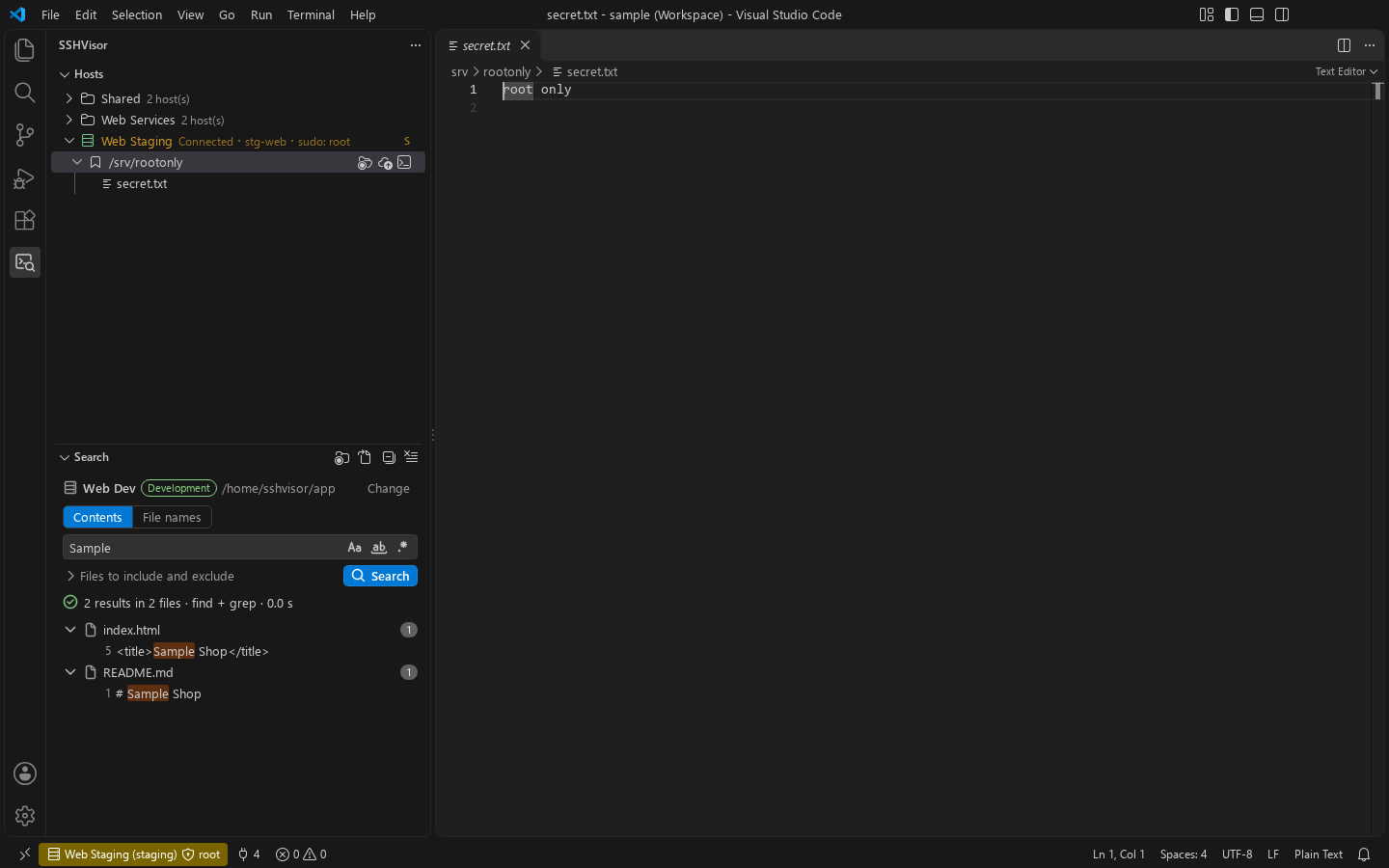
sudo on the server must let you become that user without a password (
NOPASSWDin sudoers). sudo that asks for a password cannot be used. Ask the server administrator to add a line like the following to sudoers (deployis the user you sign in as).deploy ALL=(root) NOPASSWD: ALLWhen you open, save or transfer files, SSHVisor runs
sudo -n -u <user> -- <sftp-server>on the server and reads and writes over that SFTP session. If the location of sftp-server is left empty, SSHVisor finds it from theSubsystem sftpline in sshd_config, or else in the usual places (such as/usr/lib/openssh/sftp-server).The commands that SSHVisor runs (copy, delete, tar, search, change watching) also run as the same user. This keeps SFTP and the commands from seeing different files. Files and folders you create are owned by that user.
The terminal and the commands that AI agents run stay as the user you signed in as. In the terminal, type sudo yourself when you need it. The confirmation dialog for agent commands states that the command runs as the user you signed in as.
The home folder (
~) stays the home of the user you signed in as.You can see which user files are handled as from "sudo: root" to the right of the host in the tree, the "Files as" row in the tooltip, and the shield icon in the Status Bar.
It also works when the administrator allows only sftp-server in sudoers (
deploy ALL=(root) NOPASSWD: /usr/lib/openssh/sftp-server). In that case, files are handled over SFTP only (the fast methods are not used), and search cannot be used. The "Fast methods" stage of the test connection says so.It cannot be used with hosts set to "Do not run commands on the server" or with accounts limited to SFTP.
When connecting, SSHVisor checks whether sudo can become that user. If it cannot, the SFTP stage of the test connection and a notification show the reason (a password is required, sudoers does not allow it, a terminal is required (requiretty), the user does not exist, sftp-server was not found) and how to fix it.
When you use sudo, the sudo log on the server (
/var/log/auth.log, journald and so on) records what SSHVisor ran (sftp-server and commands such as copy and delete).
#11.7 When the connection drops
SSHVisor keeps connections alive with keepalive messages (every 15 seconds by default). When a connection drops, for example because the network went down or your computer woke up from sleep, SSHVisor behaves as follows.
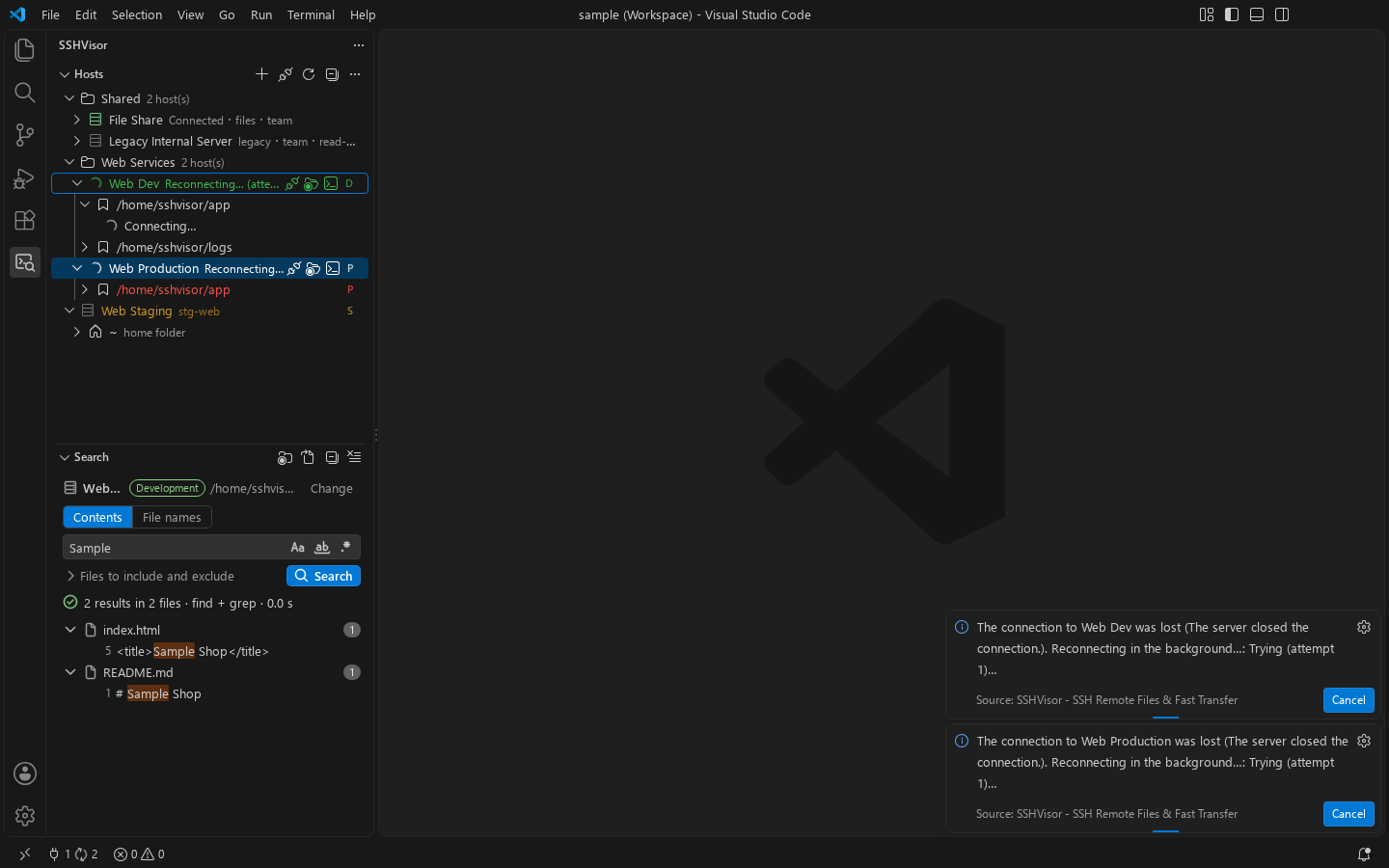
- Hosts in use (a folder added to the workspace, an open file, an open terminal, or a running transfer) reconnect in the background without waiting for your next action. If SSHVisor can sign in with a remembered password, the agent or a key without a passphrase, it reconnects silently. If input is needed, it asks only once, with a notification with "Enter Now" and "Later".
- If it reconnects within 3 seconds, no notification appears (the Status Bar briefly shows "Reconnected to …"). If it cannot reconnect, a progress notification appears at the bottom right and disappears when it reconnects. "Cancel" stops trying. If the server cannot be reached, SSHVisor keeps trying for up to 10 minutes, waiting longer each time: 2, 5, 10, 30 and 60 seconds. If it gives up, it shows a notification with the reason and "Reconnect Now" and "Disconnect".
- If any files have unsaved changes, a notification after reconnecting tells you that you can save them now.
- When your computer wakes up from sleep, or when the server does not answer for 30 seconds, SSHVisor checks whether the server answers within 5 seconds, and if it does not, closes the connection and reconnects (with keepalive messages alone, it would take 60 seconds to notice).
- After reconnecting, SSHVisor reloads that host's folders in the Explorer and restarts change watching. Transfers that were cut off continue automatically from where they stopped (up to 3 times; the Transfers view shows "The connection was lost. Continues automatically after reconnecting").
- When a host that is not in use disconnects, no notification appears (only the state in the Hosts view changes). It reconnects at your next action on it.
- Reads are sent again after reconnecting, but writes are not sent again and fail instead (they may have been partly written). If a save failed, reconnect and save again.
#12. Connect AI Agents
#12.1 What agents can do
AI agents such as the VS Code chat (GitHub Copilot agents and others), Claude Code and Codex can use SSHVisor through MCP (Model Context Protocol). SSHVisor has no AI of its own; it only gives tools to the agents.
| Tool | What it does | Access needed |
|---|---|---|
list_hosts |
Lists the hosts that can be used (name, environment tag, allowed access, whether connected) | List only |
list_directory, find_files |
Lists a folder, finds files by name | Read |
read_file |
Reads a file (large files a part at a time) | Read |
search_files |
Searches file contents by running rg or grep on the server | Read |
get_editor_context |
The remote file you are viewing in the editor, and what you have selected | Read |
open_in_editor |
Opens a file in the editor to show you | List only |
write_file |
Creates or rewrites a file (shows the diff and asks you) | Read and change |
run_command |
Runs a command on the server (asks you) | Read and change |
sshvisor_status |
The state of SSHVisor and the tools that can be used |
Example requests:
- "Using SSHVisor, find where the database password setting is read in the app on the dev host"
- "Search the logs folder on the dev host for errors from today and tell me the cause"
- "Explain the config file I am looking at in the editor"
- "On the dev host, fix the typo in nginx.conf and check the configuration with nginx -t" (when changes are allowed on that host)
#12.2 Connect an agent
Choose "..." > "Connect AI Agents..." in the Hosts view (command "SSHVisor: Connect AI Agents...") to open the setup page.
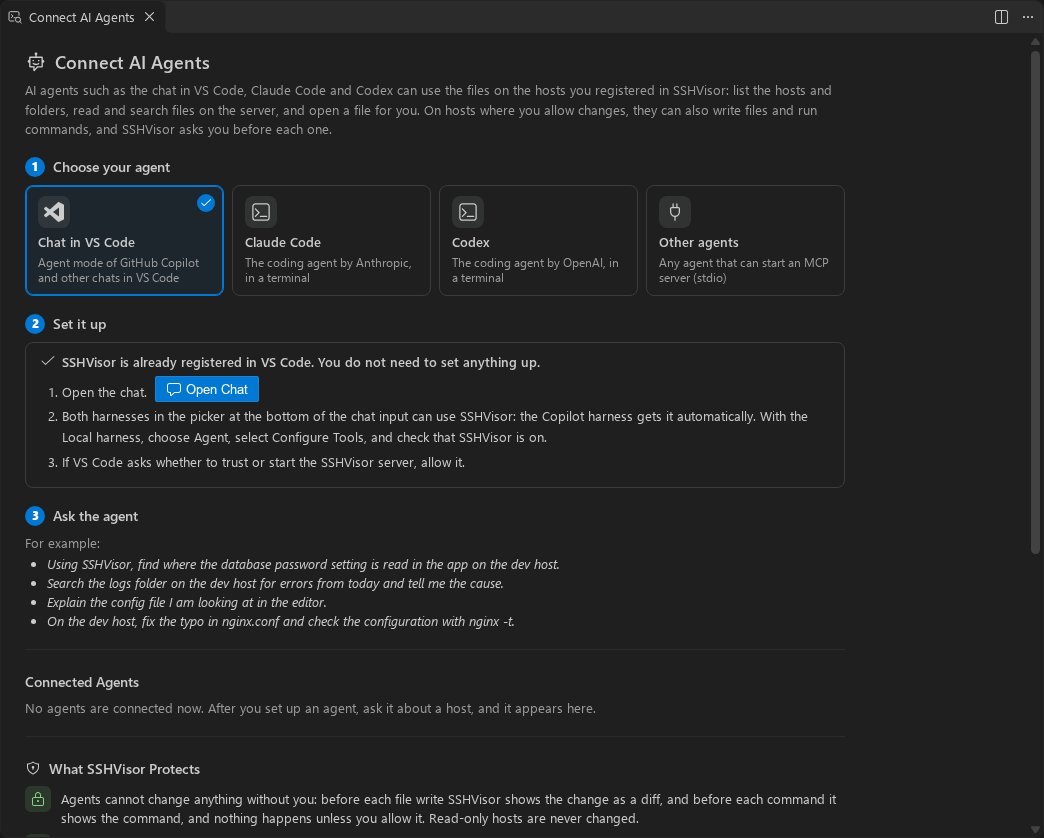
| Agent | How to connect |
|---|---|
| Chat in VS Code | Works without any setup (SSHVisor registers an MCP server with VS Code). Open the chat and, in agent mode, check in the tool settings that SSHVisor is turned on |
| Claude Code | Press "Register with Claude Code" once. SSHVisor then works in both the Claude Code extension for VS Code and Claude Code in a terminal. It is available from new conversations |
| Codex | Press "Register with Codex" once (it is added to ~/.codex/config.toml) |
| Other agents | Register the command shown on the page (node <SSHVisor bridge>) as a stdio MCP server |
- Start terminal agents inside a folder that is open in VS Code. SSHVisor connects them to the window that has that folder open.
- External agents start the SSHVisor bridge with Node.js (
node). If the page says that Node.js was not found, install it. - While an agent is connected, a robot icon and "SSHVisor" appear on the right of the Status Bar. Click it to open the setup page.
- To stop the integration, use "Turn Off the Integration" on the setup page, or set
sshvisor.agent.enabledtofalse.
#12.3 What each host allows
Agents can use only the hosts you registered, and only as far as you allow for each host.
| Access | What agents can do |
|---|---|
| Read and change | Everything in Read, plus writing files and running commands (you confirm each one) |
| Read | List folders, read files, search |
| List only | Only the host name appears in the list (the host cannot be read) |
| Hidden | The host cannot be seen (agents get the same answer as for a host that does not exist) |
The default depends on the environment tag: "Read" for development, "List only" for staging and for hosts without an environment tag, and "Hidden" for production. You can change it by editing the host, under "AI agents" (5.4 Environment tags and read-only). The tooltip of the host also shows the current access.
#12.4 Confirmation before reading and before changes
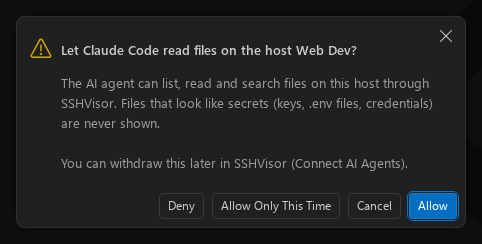
- The first read: the first time an agent tries to read files on a host, SSHVisor asks you to choose "Allow", "Allow Only This Time" or "Deny". "Allow" is remembered (you are asked again if the destination of the host changes); "Allow Only This Time" and "Deny" are remembered only while that agent stays connected. You can withdraw remembered answers with the command "SSHVisor: Withdraw AI Agent Permissions...".
- Writing files: SSHVisor opens a diff of the current contents and the new contents in the editor, then asks whether to write the file. Nothing is written unless you choose "Write". The diff closes once you decide. On production hosts, a strong warning is added.
- Running commands: SSHVisor shows the host, the environment tag, the folder, the time limit and the command, and asks whether to run it. The time limit (60 seconds by default) is counted from when you allow it, and when it is exceeded, the command on the server is also stopped. Even on hosts that use sudo, commands run as the user you signed in as (the dialog says so).
- If the host an agent asks for needs a password or passphrase, SSHVisor refuses without asking you and shows a notification with a "Connect" button. Connect to the host in the Hosts view, then ask the agent again.
#12.5 What SSHVisor protects
- Changes are always confirmed: writing files and running commands happen only when you allow each one. Read-only hosts are never changed.
- Secret files: files that look like they contain secrets, such as keys,
.envfiles and credentials, are never read or written by agents, whatever access the host allows. You can change the patterns with the settingsshvisor.agent.excludeFiles. - Destinations stay private: agents refer to hosts by name. Host addresses, users and passwords are not given to them.
- Contents are data: SSHVisor tells agents that file contents and command output are data, not instructions (files on a server can contain text written to mislead agents).
- Limits: lists and searches return 200 entries by default (at most 2,000), and each answer is up to 40,000 characters (setting
sshvisor.agent.maxResultLength). Agents read large files a part at a time. - Untrusted workspaces (Restricted Mode): agents cannot use SSHVisor.
- What an agent reads is sent to that agent's AI service. Allow only hosts whose files may be sent there.
#13. Switching from other tools
You can import the sites (connection settings) saved in SSH FS, PuTTY, WinSCP or FileZilla as SSHVisor hosts.
#13.1 How importing works
- Choose "..." > "Import from Other Tools..." in the Hosts view, or "Import from other tools" in step 1 of adding a host.
- SSHVisor looks in the standard locations (listed below), and the list of sources shows, for each tool, how many sites can be imported and where they were read from. Choose a source.
- If you choose a tool that was not found, or "Choose a File…", you can select and read an exported file.
- In the checkbox list, check the sites to import and select "OK". Each row shows the name, the destination, where it was read from, and what happens when it is imported (a warning icon marks things that cannot be copied). Connections that are not SSH (FTP and so on) appear under "Cannot be imported" with the reason.
- If passwords were saved, SSHVisor asks whether to move them to SecretStorage (they are never written to SSHVisor's settings or logs).
- Imported hosts are saved to "Only me". Items that could not be copied are written to the log when you select "Show Details" in the notification.
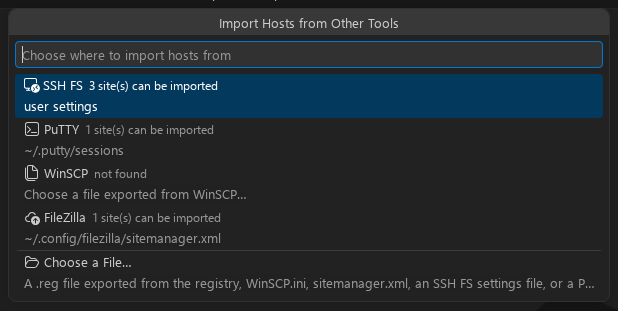
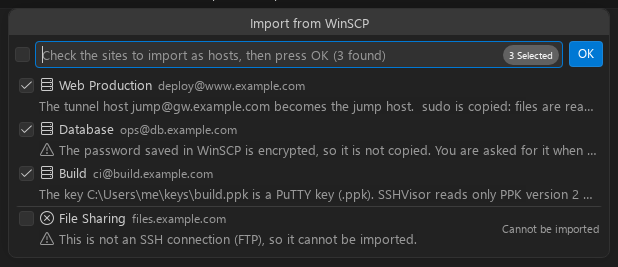
The locations searched, and the files you can choose when nothing is found, are as follows.
- SSH FS:
sshfs.configsin the user, workspace and folder settings, and the files insshfs.configpaths. Files you can choose: SSH FS settings JSON. - PuTTY: the registry (
HKEY_CURRENT_USER\Software\SimonTatham\PuTTY\Sessions) on Windows,~/.putty/sessionson Linux and macOS. Files you can choose:.regfiles exported from the registry, and session files. - WinSCP: the Windows registry (
HKEY_CURRENT_USER\Software\Martin Prikryl\WinSCP 2\Sessions) and%APPDATA%\WinSCP.ini. Files you can choose:.iniand.regfiles written by the export of WinSCP's settings. - FileZilla:
%APPDATA%\FileZilla\sitemanager.xmlon Windows,~/.config/filezilla/sitemanager.xmlon Linux and macOS. Files you can choose:sitemanager.xml, and.xmlfiles written by the Site Manager export.
In WSL windows, SSHVisor also looks on the Windows side (the registry and %APPDATA%), and converts the paths of key files (C:\…) to /mnt/c/… paths that can be read from WSL. The registry is read after Windows reg.exe exports it to a temporary file. SSHVisor runs only reg.exe with fixed arguments (and also cmd.exe in WSL), and never changes the registry.
To change anything after importing, edit the host (5.7 Edit, duplicate and delete).
#13.2 SSH FS
You can also start importing from SSH FS into the Hosts view with "SSHVisor: Import from SSH FS..." (Command Palette).
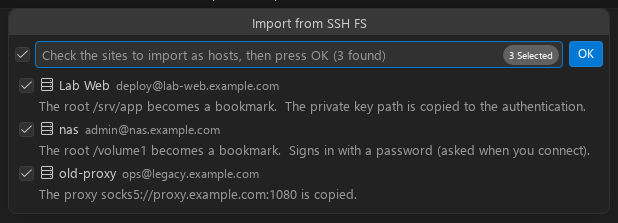
| SSH FS | SSHVisor |
|---|---|
name, label |
Host ID (the name converted to lowercase letters, digits and -), name |
group |
Folder (. becomes /) |
host, port, username |
Destination |
root |
Bookmark |
privateKeyPath, agent, password |
Authentication (private key / agent / password) |
hop |
Jump host (if it points to a setting being imported, that host's ID) |
proxy (SOCKS / HTTP) |
Proxy (11.5 SOCKS / HTTP proxies) |
sftpSudo, sftpCommand |
sudo (root if sftpSudo is true, or that user if it is a string. If sftpCommand is an sftp-server path, that location. See 11.6 Work as another user with sudo) |
extend |
Missing items are filled in from the setting it extends |
| Saved passwords and passphrases | SSHVisor asks on import whether to move them to SecretStorage (the values in the SSH FS settings remain until you delete them there) |
putty, terminalCommand and others |
Cannot be copied. Shown as warnings |
For workspaces that had SSH FS folders (ssh://…) open, add the folders again with "Add to Workspace" on the SSHVisor host.
#13.3 PuTTY
| PuTTY | SSHVisor |
|---|---|
| Session name | Name, host ID (if the name has no ASCII letters or digits, it is made from the host name) |
Host name (including user@host), port, auto-login username |
Destination |
| Private key file for authentication | Authentication (private key. For .ppk files, see 13.6 PuTTY keys) |
| Proxy (SOCKS 4, SOCKS 5, HTTP) | Proxy. SSHVisor asks whether to move a saved proxy password to SecretStorage |
| Proxy (SSH) | Jump host |
| Proxy (Telnet, local command) | Cannot be copied. Shown as a warning |
| Connections that are not SSH (Telnet, Raw, Serial and so on) | Cannot be imported |
"Default Settings" is not imported.
#13.4 WinSCP
| WinSCP | SSHVisor |
|---|---|
| Site folder and name | Folder, name |
| Host name, port, user name | Destination |
| Private key file | Authentication (private key) |
| Saved password | Not copied (the format it is saved in is not public). Authentication is set to password, and you are asked for it when you connect |
| Remote directory | Bookmark |
| Tunnel | Jump host |
| Proxy (SOCKS 4, SOCKS 5, HTTP) | Proxy |
SFTP server (in a sudo form such as sudo -u www-data /usr/lib/openssh/sftp-server) |
sudo |
| SCP | Opened over SFTP (with a warning) |
| FTP, WebDAV, S3 | Cannot be imported |
Workspaces (sets of tabs) are not imported.
#13.5 FileZilla
| FileZilla | SSHVisor |
|---|---|
| Site Manager folder and site name | Folder, name |
| Host, port, user | Destination |
| Logon type "Key file" | Authentication (private key) |
| Logon types "Normal", "Ask for password", "Account" | Authentication (password) |
| Saved password | SSHVisor asks whether to move it to SecretStorage. Passwords encrypted with a master password are not copied (you are asked for them when you connect) |
| Default remote directory | Bookmark |
| Connections that are not SFTP (FTP, FTPS and so on) | Cannot be imported |
#13.6 PuTTY keys
- Of PuTTY keys (.ppk), SSHVisor can read only version 2 RSA and DSA keys. On import, it reads the beginning of the key file and shows in the list whether it can be read.
- For keys it cannot read (version 3 keys, Ed25519, ECDSA and so on), load the key in PuTTYgen and export it in OpenSSH format with "Conversions" > "Export OpenSSH key". Then edit the host and choose the exported file under "Private key".
#14. Using SSHVisor in WSL
In a WSL window, SSHVisor runs inside WSL. So the ssh, ssh_config, keys and agent it uses are the ones inside WSL.
- To use the Windows
C:\Users\<name>\.ssh\config, put/mnt/c/Users/<name>/.ssh/configin the user settingsshvisor.sshConfigFile. However,IdentityFile C:\…lines in it cannot be read from WSL, so put the keys inside WSL or write their paths as/mnt/c/…. - You cannot connect directly from inside WSL to an SSH agent on Windows (the OpenSSH agent, Pageant). Run
ssh-agentinside WSL, or use passwords and passphrases with "Remember on this machine". - "Import from Other Tools..." also looks for the PuTTY, WinSCP and FileZilla settings on the Windows side in WSL windows (13.1 How importing works).
- When you drop files from the Windows file manager onto the Hosts view in a WSL window, their paths may not be readable from inside WSL. In that case, drop them onto a server folder in the Explorer instead (VS Code reads them on the Windows side and then sends them), or choose the files under
/mnt/c/…with "Upload with SSHVisor...".
#15. Settings, keyboard shortcuts and commands
#15.1 Settings
| Setting | Default | Description |
|---|---|---|
sshvisor.sshPath |
(empty) | The ssh used to read ssh_config with ssh -G. If empty, C:\Windows\System32\OpenSSH\ssh.exe on Windows and ssh on the PATH elsewhere. Can be set only in user settings |
sshvisor.sshConfigFile |
(empty) | The ssh_config to read. If empty, the default (~/.ssh/config and the system-wide file). Can be set only in user settings |
sshvisor.ssh.agent |
auto |
The SSH agent (auto, a socket or pipe path, pageant, none). Can be set only in user settings. Up to v0.3, this was sshvisor.agent, which is still read if it is set |
sshvisor.connection.keepaliveSeconds |
15 |
The keepalive interval (seconds). ServerAliveInterval in ssh_config and the value in the host take precedence. 0 sends none |
sshvisor.connection.timeoutSeconds |
20 |
How long to wait for a connection (seconds). The time you spend entering passwords and so on is not counted. ConnectTimeout in ssh_config takes precedence |
sshvisor.files.cacheSeconds |
5 |
How many seconds to remember the attributes of files on the server (listings are remembered twice as long). 0 remembers nothing |
sshvisor.files.watch |
auto |
How to watch for changes on the server (auto, foldersByPolling, openFiles, off. See 7.5 Show changes made on the server) |
sshvisor.files.watchIntervalSeconds |
5 |
The interval for checking open files (and also folders with foldersByPolling) (seconds, 2–300) |
sshvisor.transfer.parallelFiles |
128 |
The number of files read or written at the same time (up to 32 per SSH channel). The value in the host takes precedence |
sshvisor.transfer.pipelineDepth |
0 |
The number of requests sent at the same time for one file. 0 is automatic (8 for OpenSSH) |
sshvisor.transfer.connections |
3 |
The number of connections per host for downloads and copies of 256 MiB or more (1–4). Connections are added only when they can sign in without asking you (9.9 Speed and the number of connections) |
sshvisor.transfer.revealView |
true |
Opens the Transfers view when a transfer starts |
sshvisor.safety.confirmOnProduction |
true |
Asks before deleting and overwriting on production hosts |
sshvisor.agent.enabled |
true |
Integration with AI agents (12. Connect AI Agents) |
sshvisor.agent.maxResultLength |
40000 |
The maximum number of characters returned to an AI agent at a time |
sshvisor.agent.excludeFiles |
(keys, .env, credentials and so on) |
Globs of the files that AI agents may not read or write |
The ssh path, ssh_config and agent cannot be changed from workspace settings (so that the settings in a repository cannot run another program as ssh).
#15.2 Keyboard shortcuts
| Key | Where | Action |
|---|---|---|
F2 |
Hosts view | Rename files or folders, edit hosts |
Delete (Cmd+Backspace on macOS) |
Hosts view | Delete files or folders, delete hosts |
Ctrl+Enter |
Hosts view | Connect / disconnect |
Ctrl+Enter |
Add / edit host form | Save and Connect |
Esc |
Add / edit host form | Close the form |
The Explorer keys (F2, Delete, Ctrl+C / Ctrl+V and so on) work in server folders too.
#15.3 Commands
Type "SSHVisor" in the Command Palette (Ctrl+Shift+P) to see these commands.
| Command | Action |
|---|---|
| SSHVisor: Add Host... | Opens the form for adding a host |
| SSHVisor: Add Host from ssh_config... | Opens the form for adding a host, starting from the list of hosts in ssh_config |
| SSHVisor: Import from Other Tools... | Choose and import sites saved in SSH FS, PuTTY, WinSCP or FileZilla |
| SSHVisor: Import from SSH FS... | Choose and import SSH FS settings |
| SSHVisor: Add Remote Folder to Workspace... | Choose a host and a folder, and add the folder to the Explorer |
| SSHVisor: Open Remote Folder in New Window... | Opens a folder on a host in a new window |
| SSHVisor: Connect | Choose a host and connect to it |
| SSHVisor: Disconnect All Hosts | Closes all connections |
| SSHVisor: Edit Host... | Choose a host and open its edit form |
| SSHVisor: Test Connection | Choose a host, open its form and test the connection |
| SSHVisor: Open SSH Terminal | Opens a terminal on the host or folder selected in the Hosts view |
| SSHVisor: Search in Folder... | Opens the Search view and moves to the input box (asks you to choose a scope if there is none) |
| SSHVisor: Go to File... | Filters the files in the scope folder by name and opens one |
| SSHVisor: Choose Folder to Search | Chooses the search scope again |
| SSHVisor: Refresh | Reloads the hosts and redraws the Hosts view |
| SSHVisor: Show Transfers | Opens the Transfers view in the bottom Panel |
| SSHVisor: Get Started with SSHVisor | Shows the three steps on the VS Code Welcome page |
| SSHVisor: Connect AI Agents... | Opens the setup page for integrating AI agents |
| SSHVisor: Withdraw AI Agent Permissions... | Withdraws all the "Allow" answers given when agents first read hosts |
| SSHVisor: Show Log | Opens the Output (SSHVisor) |
#16. Troubleshooting
| Problem | What to check |
|---|---|
| Cannot connect | Use "Test Connection" on the host to see which stage it stops at (6.3 When a stage fails). The failed stage shows what happened and what to check |
| "The host key of … is different from the one used before" appears | Someone may be impersonating the server. See 11.3 Host keys |
| You want to enter a password again | Edit the host, clear "Remember the password or passphrase on this machine" and save. This deletes the remembered values (including proxy passwords). You are asked at the next connection |
| Files changed on the server do not show up | Open files are updated in about 5 seconds. For new files in folders, if the server has no inotifywait, select "Refresh Explorer" in the Explorer (7.5 Show changes made on the server) |
| Server files do not appear in VS Code's search or Quick Open | Because of VS Code limitations, they do not work in sshvisor:// folders. Use the SSHVisor Search view and "Go to File..." (7.7 Search files on the server) |
| A format cannot be chosen, or SSHVisor says it cannot be used, when compressing or extracting on the server | The server does not have the commands for that format (zip and unzip for .zip, zstd for .tar.zst). .tar.gz can be used on almost every server. If you only need to put the contents of a ZIP file on the server, the ArcVisor route also works (9.13 Use with ArcVisor) |
| "SSHVisor does not extract …" appears | The archive contains something that would be written outside the destination (absolute paths, .., links that point outside), special files, or encrypted ZIP files. To check the contents, download the archive and open it with ArcVisor or a similar tool (9.11 Extract on the server) |
| Compress and Download is not faster | Images, videos and files that are already compressed do not get smaller, so the ordinary "Download with SSHVisor..." is faster (9.12 Compress and download, upload and extract) |
| sshvisor-… folders are left in /tmp on the server | They are temporary folders left when VS Code was closed during Compress and Download or Upload and Extract. If you do not need what is in them, you can delete them |
| The Search view says "Search cannot be used" | Search cannot be used with accounts limited to SFTP, hosts set to "Do not run commands on the server", or servers that have neither rg nor grep and find. Read the reason in the message |
| A search with a regular expression fails | Use the syntax of the tool on the server. BusyBox grep does not support \d, so use [0-9] (7.7 Search files on the server) |
| AI agents do not use the SSHVisor tools | On the setup page ("..." > "Connect AI Agents..." in the Hosts view), check the steps for your agent and whether the integration is turned on. Claude Code and Codex can use the tools in new conversations started after you register (12.2 Connect an agent) |
| AI agents cannot read a host | Check the host's "AI agents" access (the default depends on the environment tag), and check that you did not choose "Deny" when asked about the first read (12.3 What each host allows) |
| A dropped connection does not come back | While the progress notification is shown, SSHVisor is trying in the background. Reconnect with "Reconnect Now" in the notification shown when it gives up, or with "Connect" on the host (11.7 When the connection drops) |
| Cannot connect to the proxy, or the proxy refuses | "TCP connection" in the test connection shows what the proxy answered. Check the proxy host, port and type (SOCKS5, SOCKS4, HTTP), the proxy user and password, and whether the proxy allows that destination and port (11.5 SOCKS / HTTP proxies) |
| Connections through a proxy are slow | If the proxy is set to collect small packets before sending them (it does not use TCP_NODELAY), the small requests and answers of SFTP are held up. In measurements on a line with a 52 ms round trip, writing ran at two-thirds of the speed. Ask the proxy administrator to check the settings (with proxies that use TCP_NODELAY, the speed was the same as a direct connection) |
| "sudo on … asks for a password to act as …" appears | SSHVisor uses only sudo that needs no password. Ask the server administrator to allow NOPASSWD in sudoers (11.6 Work as another user with sudo) |
| Search or the terminal behaves differently on a host that uses sudo | Search cannot be used on hosts where sudo allows only sftp-server. The terminal opens as the user you signed in as, even on hosts that use sudo (11.6 Work as another user with sudo) |
| PuTTY, WinSCP or FileZilla sites do not appear in the list of sources | If the settings are not in the standard locations (such as the .ini file of a portable WinSCP), choose an exported file with "Choose a File…" (13.1 How importing works) |
| The PuTTY key of an imported host cannot be read | Export it in OpenSSH format with PuTTYgen, and choose it again under "Private key" for the host (13.6 PuTTY keys) |
| Dragging a large file fails | Dragging and copying in the Explorer cannot handle files over 2–4 GiB. Use "Upload with SSHVisor..." or "Download with SSHVisor..." |
| Transfers are slow or stop partway | Try "Safe mode" in "Advanced settings" of the host (for servers that become unstable with simultaneous requests). The log (see below) shows the progress of transfers |
| A transfer stopped partway, or you closed VS Code during a transfer | "Resume" on the row in the Transfers view sends the rest from where it stopped (9.7 Resume a transfer) |
| Progress notifications do not appear | Since v0.2, progress is shown in the Transfers view in the bottom Panel. Select "N transfer(s)" in the Status Bar to open it |
| No connections are added for large downloads | They are added only for hosts that can sign in without asking you. For hosts that sign in with a password, select "Remember on this machine" so that connections can be added (9.9 Speed and the number of connections) |
| Hosts shared with the team do not appear | Check that the workspace is trusted (2.5 Workspace Trust) and that .vscode/sshvisor.json is written correctly (the Output shows the line with the problem) |
| VS Code is slow or keeps using the CPU | Other extensions (such as Git and oxc's oxlint) may be repeatedly reading the sshvisor:// folders in the workspace as if they were the same paths on your machine (for the server's /, the whole disk of this computer). If SSHVisor showed a notification at startup, choose "Remove from Workspace" and add only the folder you work in (7.1 Add to the workspace). For the oxc (oxlint) extension, setting "oxc.disableNestedConfig": true and "oxc.fmt.disableNestedConfig": true in the workspace settings also stops this. If the CPU stays busy after you close the window, stop the language server that was left running (such as oxlint --lsp) |
Viewing the log: choose "..." > "Show Log" in the Hosts view, or run "SSHVisor: Show Log" from the Command Palette, to open the Output (SSHVisor). With the gear in the Output view, set the log level to "Debug" to see the progress of connections and transfers, or to "Trace" to see the SSH messages too (transfers become slower, so set it back when you are done). Passwords are never written to the log.
#17. FAQ
Q. Do I need to install anything on the server?
A. No. SSHVisor uses only SSH and SFTP. If a shell is available, it also uses ordinary commands such as tar. You need zip and unzip only to create or extract .zip files on the server (9.10 Compress on the server).
Q. Can I use SSHVisor with SSH FS installed?
A. Yes. SSHVisor uses sshvisor:// folders and SSH FS uses ssh:// folders, so they do not conflict. You can import your SSH FS settings (13. Switching from other tools).
Q. Where are passwords saved?
A. Only when you select "Remember on this machine" are they kept, in VS Code's SecretStorage (the credential store of the OS). They are never written to host definitions (including .vscode/sshvisor.json), settings or logs.
Q. Does SSHVisor change ~/.ssh/config? A. No. It only reads it. It adds keys to known_hosts when you trust a new host (the same behavior as OpenSSH).
Q. I want to change a host ID. A. It cannot be changed. Make a copy with "Duplicate", save it with a new ID, and delete the original host. Add the folders you had added to the workspace again from the new host.
Q. Should I drag in the Explorer or use "Upload with SSHVisor..."? A. The Explorer is usually enough. For folders with many files, very large files, or when you want to choose how files with the same name are handled, use "Upload with SSHVisor..." (9.1 When to use them instead of the Explorer).
Q. Can I search files on the server?
A. Yes. Use the "Search" view in the SSHVisor Side Bar to search on the server. SSHVisor runs rg (or grep if rg is not available) on the server, so files are not brought to your machine (7.7 Search files on the server).
Q. Can AI agents change my files without asking? A. No. The tools for writing files and running commands are available only on hosts where you allowed "Read and change", and even then, each change runs only after SSHVisor shows you the diff or the command and you allow it (12.4 Confirmation before reading and before changes).
Q. Does watching for changes put a load on the server?
A. SSHVisor only checks the open files every 5 seconds; even with 100 files open, each check takes about 0.3 seconds on a line with a 50 ms round trip. To stop it, set sshvisor.files.watch to off.
Q. Is the VS Code proxy setting (http.proxy) used?
A. No. SSH connections go only through the proxy set in the host (11.5 SOCKS / HTTP proxies).
Q. Can I use sudo that asks for a password? A. No. SSHVisor uses only sudo that needs no password (NOPASSWD in sudoers). Files can still be handled when sudoers allows only sftp-server (11.6 Work as another user with sudo).
Q. Can I import passwords saved in WinSCP? A. No (the format they are saved in is not public). You are asked for the password the first time you connect, so select "Remember on this machine" then. Passwords saved in FileZilla (those not encrypted with a master password) and the proxy passwords of PuTTY and WinSCP can be moved to SecretStorage after SSHVisor asks you (13. Switching from other tools).
Q. What happens to the files already sent when I cancel a transfer? A. The files that were completely sent stay as they are. Large files that were partly sent are also kept, and you can send the rest with "Resume" in the Transfers view (9.7 Resume a transfer).
#18. Glossary
| Term | Meaning |
|---|---|
| Host | A destination registered in SSHVisor. It has a name, a destination, an authentication method, an environment tag and so on |
| Host ID | A name that identifies a host. Used in the URI of server folders (sshvisor://<host ID>/path) |
| Bookmark | A frequently used folder on a host. Shown under the host in the Hosts view |
| Environment tag | Development (dev), staging (stg) or production (prod). Shown with a color and a single letter (D, S, P) |
| Save location | Only me (inside VS Code) or shared with the team (.vscode/sshvisor.json in the workspace) |
| ssh_config | The OpenSSH configuration file (~/.ssh/config). It holds host names, users, keys, jump hosts and so on |
| known_hosts | The OpenSSH file (~/.ssh/known_hosts) that holds the host keys of trusted servers |
| Host key, fingerprint | The key a server uses to identify itself, and a short digest of it (SHA256:…). Checked to detect a server being impersonated |
| Jump host | A server you pass through to reach a server you cannot connect to directly (ProxyJump) |
| Proxy (SOCKS, HTTP) | A server that relays connections. Often placed at the exit of a company network |
| sudo, sudoers | sudo is the mechanism for running things as another user (such as root) on a server. sudoers is the server setting that decides who can do what, and NOPASSWD tells sudo not to ask for a password |
| PPK | The file format of PuTTY private keys (.ppk) |
| SecretStorage | The VS Code mechanism that keeps secret values in the credential store of the OS |
| Workspace | The set of folders open in VS Code. A window with several folders side by side becomes "Untitled (Workspace)" and can be saved as a .code-workspace file |
| SFTP | The protocol for reading and writing files over SSH |
| Transfers view, queue | The view in the bottom Panel that lists uploads, downloads and copies and shows their progress. It runs up to 2 at the same time, and one at a time for the same host |
| Search view | The Side Bar view for searching on servers. It runs rg or grep on the server |
| Archive | A file that bundles several files and folders into one (.tar.gz, .zip and so on). SSHVisor creates and extracts archives on the server |
| ArcVisor | A sister tool of SSHVisor: an extension that opens archives in the Explorer without extracting them |
| Watching | Noticing changes on the server and showing them in the editor and the Explorer |
| Reconnecting | Connecting again after a connection drops. Done automatically in the background for hosts in use |
| AI agent, MCP | AIs that work by using tools, such as the VS Code chat, Claude Code and Codex. MCP is the standard for giving tools to agents |
| Allowed access | What AI agents may do on each host (Hidden / List only / Read / Read and change) |